Section 1 A roll, start to finish
Four steps. The first three happen on the phone, over however many days the roll takes; the fourth happens once the scans are back, and it is the only one with a choice in it. Each step ends where the full description of it begins.
-
Step 1.1 Your gear, and your name
Creator and Copyright are copied into a roll when it is created, not added to it later. Set them before the first roll, not after.
- Bodies
- Gear → Cameras. Make and model get written into every scan.
- Lenses
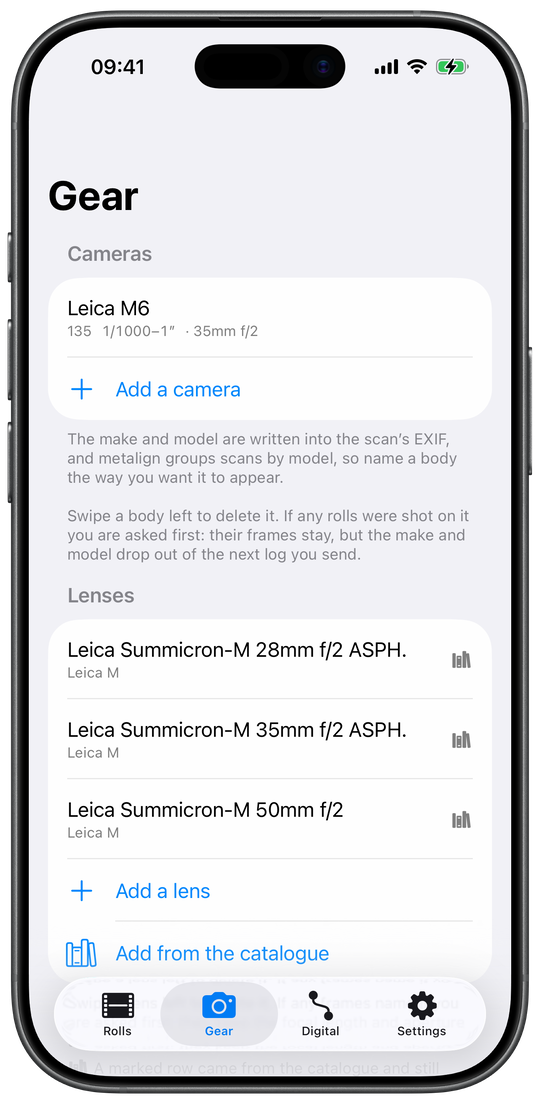
- Gear → Lenses. Mount is optional. The aperture dial can be bounded to the stops the ring really clicks at, half-stops included.
- Film
- Gear → Film stocks, or straight from the New roll form, or from the barcode on the box.
- Creator & Copyright
- Settings → Defaults for new rolls.
Everything about gear, the catalogue and the barcode: §2.7.
Fig. 1.1 Gear, before the first roll. -
Step 1.2 Create the roll, and load it into a body
The number the roll will get is on the form before the roll exists. Write it on the canister: it is how the roll back from the lab finds its log.
- Rolls → +
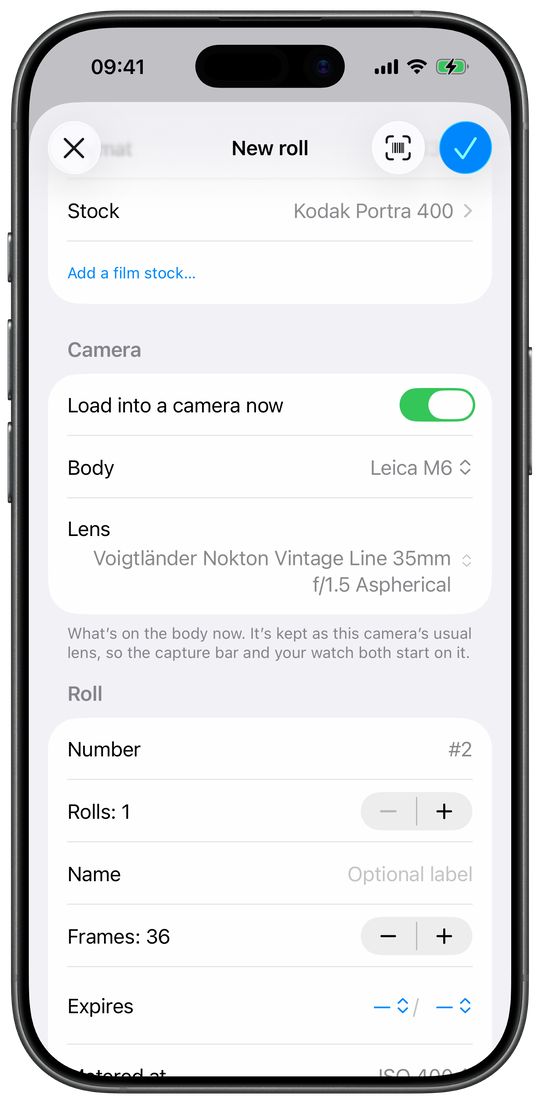
- the film first, then the camera it goes into, then the roll's number, frames and expiry.
- The barcode button
- fills in the film from the box, once the app has learned that box.
- Load into a camera now
- with the lens that's mounted; or later from the roll, or from Apple Watch.
- Metered at
- the box speed, unless you push or pull.
The whole form, and the rest of a roll's life: §2.2.
Fig. 1.2 New roll: the film first, then the camera it goes into. -
Step 1.3 Log each frame as you shoot it
A frame logged without the dials in view records the time and the gear and leaves the exposure blank on purpose. It is never guessed from the frame before it.
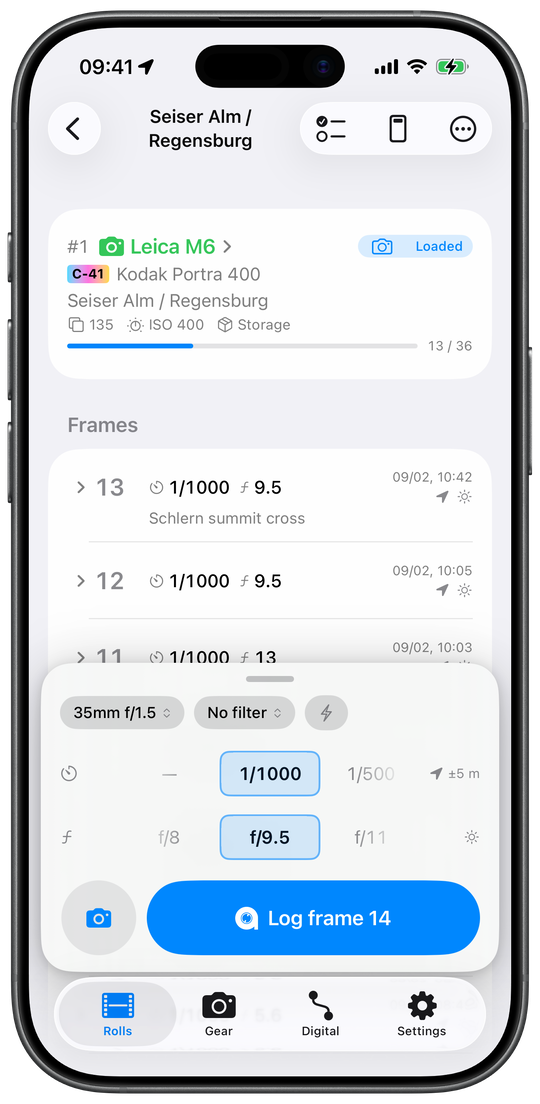
- Set the dials, tap Log frame N
- time and place are stamped automatically (§2.3).
- No dials in view
- Apple Watch, a widget, the Log Frame control, the Live Activity, Siri, the Action button (§3).
- Skipped a frame?
- Add blank frame holds its place: pairing is positional (§7).
- Finished
- ⋯ → Finish roll marks the roll Exposed.
Fig. 1.3 A roll in a camera: the frames logged so far, and the capture bar for the next one. -
Step 1.4 Write the log onto the scans
All three apps write from the same document, by the same positional pairing, into the same tags. What differs is which files they open and what they leave behind (§9).
- On the phone
-
- ⋯ → Scan pairing, then From Files or From Photos.
- Check the pairing, tap Write N scans. JPEG only: a TIFF is refused.
- Full detail: §2.8.
- On the Mac
- In a browser
-
- Open in a browser on the phone's Export screen, or drop the
.jsonand the scan folder into metalign web. - Check the pairing, then write into the files (Chrome, Edge, Opera) or download a ZIP. Nothing is uploaded.
- Full detail: §5.
- Open in a browser on the phone's Export screen, or drop the
Section 2 metalign on the iPhone and iPad
metalign is a logbook for film: one entry per frame, written at the shutter, and later written onto the lab's scans. Everything it does is here, one heading per feature, in the order you meet it. The app has four tabs: Rolls, Gear, Digital and Settings. On an iPad it is the same app, with the list of rolls beside the open roll.
Section 2.1 The Rolls list
The five tabs: where a roll is in its life
The Rolls list opens on a strip of five tabs, one per stage of a roll's life and one for everything: In a camera (loaded rolls), Ready to shoot (unused film, including rolls taken out part-shot), Shot (exposed, developed and scanned rolls), Archived (whatever you put away yourself, in any state) and All rolls. Only the selected tab shows its name; the others show an icon. A finished roll is under Shot. An empty tab says what lands there. The list opens on the first tab that holds a roll, never on All rolls unless you pick it.
Several cameras at once: one heading per body
With rolls loaded in two or more bodies, In a camera gets one heading per camera, named as in Gear, so you can see which film is in which body. Each body holds one roll; two cameras are shot at once by loading a roll into each.
Storage, fridge, freezer: where unshot film is kept
Unshot film can be filed by where it is kept: Storage, Fridge or Freezer, set as Kept in on the New roll form or in Roll details. Under Ready to shoot a row of chips appears, All and one per place that holds film, each with a count: tap Freezer to see what film is left in the freezer. The New roll form starts on the last place you chose.
Sorting the list
The ↑↓ button at the end of the tabs sorts the tab you are on. Ready to shoot sorts by Expiry date (the default, soonest first), Canister number or Film. Shot sorts by What’s next (exposed rolls first, then those at the lab, developed and scanned) or Most recent. Archived sorts by Most recent, Film or Camera. All rolls keeps the four tabs' headings with Tab, or becomes one flat list by canister number, most recent or film. In a camera has no sort. The choice travels with your library.
Searching your rolls
Pull the list down for a search field, Film, gear, place or
note. It finds a roll by its name, its #number, film, body, lab or
notes, by the year it was shot, and by what its frames carry: a title, caption, keyword,
note, lens or a place name already looked up. Every word you type has to match
somewhere on the roll, and a row found through a frame says which frame. Case and
accents are ignored, so tromso finds Tromsø. #12 finds roll 12
alone. Search never looks anything up, so it works offline; a place matches only once
its name has been looked up (§2.6).
What a roll's row shows
A row carries the roll's number, the camera or film as its headline, its name, format, ISO and storage place, and a count of frames against the roll's length, orange once the roll is past it.
- Expiry. An hourglass and Exp. 03/2027, the way the box prints it, in orange once that month has ended. There are no reminders: the app sends no notifications. Ready to shoot sorted by expiry is the list of what to shoot first.
- Push or pull. A roll metered at another speed than the box draws its ISO in full ink with an arrow up or down (§2.2).
- Process badge. A small box before the film's name says its process: C-41, E-6, ECN-2 or B&W, coloured so the kinds tell apart at a glance. It appears when the film has a process set in Gear.
- State. A coloured capsule: Unused, Part-shot, Loaded, Exposed, Developing, Developed or Scanned. On the list it shows only its icon, to leave room for the name; tap it to read the word. Part-shot is an unused roll that already has frames (one taken out to change film). Developing is an exposed roll you marked Sent to lab.
- Delivery marks. A green mark once the log has been exported or sent, a second once it has been written onto scans, and a blue dot with a number for frames logged with the app closed that are not confirmed yet (§2.4). The marks record what happened; they never stop you sending a roll again.
A Log frame button on the list
Settings → Rolls & frames → On the Rolls list → Log frame button puts a Log frame N button on every loaded roll's row. It logs the next frame without opening the roll: time, gear and, with location on, the place, but no exposure, which you can add to the frame afterwards. Off by default.
In hand: which camera a blind press logs onto
With two or more rolls loaded, Shortcuts, Siri and the Action button cannot see which camera you just used. Swipe a loaded roll right, or hold it down, and choose In hand: those routes then log onto that body until you choose another. The body in hand is drawn green with a filled camera icon, and a line under its heading says where frames will land. Pressing a camera on Apple Watch sets it too, and so does Settings → This device → Body in hand. It is a preference, not a lock: if that body is empty, a frame lands on the roll most recently loaded. It stays on the device and is not synced. More in §3.
Swiping and holding a roll
Swipe a roll right to Archive it (Unarchive on an archived one), or left to Delete it; both need a tap, not a full flick, on a loaded roll. Hold a roll down for more without opening it: Roll details, Show as Live Activity, Sent to lab, In hand, Export for metalign, Scan pairing and Select, each where it applies.
Archiving a roll
Archiving moves a roll to Archived and keeps everything on it. From the list it is a right swipe; from the roll it is ⋯ → Archive roll. An archived roll can still be opened, edited and sent, and still counts in Statistics. Archiving a loaded roll takes it out of its camera.
Selecting several rolls
Select (from a roll's long press) or Send multiple (from the share button at the top of the list) ticks rolls. A bar then offers Mark as, Move to (Storage, Fridge or Freezer), Archive and Delete, and the top bar Send N rolls (§2.12). To mark ten rolls developed at once, tick them and choose Mark as → Developed.
An empty library
With no rolls yet, the Rolls tab offers two ways in: Add a roll and Import a shot log (§2.11).
metalign on iPad
On an iPad at full width the Rolls list is a sidebar with the open roll beside it, and the app opens on the roll in hand. With no roll open the right side says No roll open. The list folds away while Scan pairing is open, which gets a wider table there (§2.8). A narrow Split View window follows the iPhone's layout.
Long roll names
A roll's name that does not fit the top bar wraps onto a second, smaller line before it is cut.
A canister number that moved after a sync
If two of your devices gave two rolls the same canister number, the roll added later takes the next free number, and a line above the list says so until you dismiss it.
Section 2.2 A roll, from New roll to the archive
New roll
Rolls → + opens New roll, one form in four parts. Film: the format and the Stock, picked from your gear or the bundled catalogue, or Add a film stock…. Camera: Load into a camera now, with the body and lens. Roll: number, how many rolls, an optional name, frames, expiry and the speed you meter at. Storage: Kept in. At the foot, Already shot for a roll shot without metalign. The barcode button in the top bar scans the film box (§2.7), and the tick adds the roll.
The format sets the frame count: 36 for 135, 12 for 120, 24 for 220 and 110, 1 for 4×5 and 8×10, 8 for Instant. The stepper takes any count from 1 to 200, so a 24-exposure roll is one tap away.
Canister number, and several rolls at once
The form shows the number the roll will get before it exists (#12, or #12–#16 for five) so you can write it on the canister, which is how a roll back from the lab is matched to its log. Rolls adds up to 20 rolls of one film in one go; a batch is not loaded. The next number is one above the highest in the library, and it can be changed later to any whole number, year-style ones included.
Metered at: box speed, push and pull
Metered at starts at the film's box speed. Change it only if you push or pull: to log HP5 pushed to 1600, pick HP5 and set Metered at to 1600. The form then adds a Push / pull row (+2 stops), and the roll's card says it was pushed from box speed. The metered speed, not the box speed, is written as the film speed on every scan, and it is what the lab needs. It can be changed after shooting in Roll details; a single frame metered differently is set on that frame (§2.5).
Loading a roll into a camera
Switch on Load into a camera now and pick the body and the lens. The lens becomes that camera's usual lens, so the capture bar and Apple Watch both start on it. A roll can also be loaded later with ⋯ → Mark as → Loaded, which asks for the body and, if you have lenses, which one is mounted: Load roll offers the camera's usual lens, and Every frame takes this lens until you change it on the capture bar. A body set as Default body in Settings is preselected when its format matches.
Swapping a roll out of a camera
Loading into a body that already holds a roll asks what happened to that one: Mark it exposed (shot to the end, ready for the lab) or Put it back on the shelf (taken out part-shot to change film; it keeps its frames and carries on where it stopped when you load it again). Settings → Rolls & frames → When swapping a roll answers it once for good. With Ask every time, Apple Watch will not swap and sends you to the phone.
Already shot: a roll shot without metalign
Already shot at the foot of New roll is for a roll you shot without the app, years ago if you like. You name its body without loading it and give it a developed or scanned date. The roll starts as Developed or Scanned, and its frames come from its scans: pick the lab's scans in Scan pairing and it adds one frame per scan (§2.8). One roll at a time.
A roll with no frames
An empty roll's screen says the next step: on a loaded roll, tap Log frame; on unused film, load it first; on a shot or scanned roll, pick the lab's scans in Scan pairing. Frames can be logged only on a loaded roll.
The roll's summary card
The top of a roll's screen repeats its row and adds what the row has no room for: a push or pull line, the dates the log was exported and written onto scans, and the Mac's receipt when it was sent to one. The camera's name links to that camera in Gear.
The roll's ⋯ menu
A roll's screen has a ⋯ menu with everything that acts on the whole roll: Roll details, Frame map, Add frames…, Export for metalign, Scan pairing, Sent to lab, Mark as, Finish roll and Archive roll, each where it applies.
Roll details
⋯ → Roll details edits a roll after it exists: name, frames, expiry, Metered at, film and body; number and Kept in; Creator and Copyright, which are per roll and written onto every scan from it; the lab and notes; the dates and the log's marks. A wrongly chosen film is fixed here; the format cannot change. Choosing None (back on the shelf) as a loaded roll's body takes it out, part-shot, with its frames kept. Editing never changes the roll's state; only Mark as does.
Dates, and the log's two marks
Roll details lists Loaded, Finished, Sent to lab, Developed and Scanned, and under The log the dates it was Exported and Written onto scans. Each can be set or cleared by hand when the app has it wrong. Changing a date does not change the roll's state.
Danger zone
At the foot of Roll details, when there is something to clear: Clear exported mark, Clear written mark, Clear N thumbnails, Remove N full scans and Clear scan pairing. Each asks first and acts the moment you confirm, even if you then close Roll details without saving. Above it, Scans kept by this app shows how much space the roll's thumbnails and full scans take. To free space, remove the full scans first.
Deleting a roll
Delete roll in Roll details, a left swipe on the list, or the selection bar's Delete. The question counts the logged frames, which the negatives cannot give back, suggests archiving instead, and with iCloud sync on says the roll goes from your other devices too. Deleting several rolls also names those whose log has already gone out. There is no undo in the app.
Mark as: setting a roll's state by hand
⋯ → Mark as sets Unused, Loaded, Exposed, Developed or Scanned, and stamps today's date for that step. Going back clears the later dates, never the log's marks. Part-shot and Developing are not in the menu: they follow from the roll's frames and dates. Picking scans in Scan pairing marks an exposed or developed roll Scanned by itself.
Finish roll, and Undo
⋯ → Finish roll on a loaded roll marks it Exposed with today's date and puts the capture bar away. A Roll finished line with Undo stays while you are on that roll's screen, for the frame you find left on the roll. Later, Mark as → Loaded does the same.
Sent to lab, and Developing
Sent to lab, in the ⋯ menu or a roll's long press, stamps the day an exposed roll went to the lab. Its state then reads Developing until you mark it Developed, and under Shot it sorts between the exposed rolls and the developed ones.
Statistics
Settings → About → Statistics counts what you have shot: rolls, frames, exposures logged, blank frames and frames with a location; your first and latest frame; the films and bodies you used most (rolls each), the lenses (frames each), and frames per year. Archived rolls count, and so does gear you have since deleted. The numbers are worked out when the screen opens, on the device.
Section 2.3 Logging a frame: the capture bar
The capture bar and Log frame N
At the foot of a roll that is in a camera sits the capture bar: a lens chip, a filter chip, a flash bolt, the location status, the Shutter and Aperture dials, and Log frame N. Shoot, set the dials to what the camera was set to, tap. The frame gets the time with its time zone, the place, the dials, the filter, the compensation, the flash and the lens. The dials always show the next frame, and logging never waits for GPS. There is no bar on a roll that is not loaded.
The dials stay where you left them
With Settings → Rolls & frames → Carry settings to the next frame on (the default), the dials, lens, filter and metered ISO stay put after each frame and when you come back to the roll, so a run at one setting is one tap a frame. Off, every frame starts from a clean dial. A route with no dials (§3) never takes a shutter or aperture from the frame before.
"—": an exposure not recorded
Each dial has a "—" stop, which records nothing, and a frame logged there reads No exposure recorded. A quick flick lands on a real stop, never on "—"; place it deliberately. If a body or lens change drops the value a dial was on, that dial goes back to "—" rather than to a wrong stop.
The lens chip
The first chip names the lens on the camera, or No lens. Its menu lists the lenses that fit the body's mount; picking one mounts it, which sets the lens of the next frames and the aperture dial's stops. The lens belongs to the camera, not the roll, so it stays on for the next roll in that body. A frame already logged is changed in the frame editor.
The flash bolt
The bolt beside the filter chip switches between not recorded and Fired for the next frames, and stays on until you tap it off. "Did not fire" is set in the frame editor. Silence is not a value: a frame that says nothing about a flash writes no flash tag.
How many frames are on the roll
The count, 13 / 36, is on the roll's card and its row, orange past the roll's length. When the count reaches the length, a small orange mark appears beside the dials: film usually gives one or two more than the box says, and the log keeps counting. Frame 37 can always be logged.
A body whose counter starts below 1
A Leica M6 loaded fresh sits at −2, so its first exposure is −1. Gear → a camera → Frame counter → Counter starts below 1, with First frame set from −5 to 1, numbers frames the way the camera's counter does, in the app, the shot log and the scans. Frames before 1 count towards the roll decides whether those count towards the 36. Why it matters for the lab's scans: §7.
The location status: why a frame would get no place
Beside the dials the bar shows the position's accuracy, ±5 m, when a usable fix is ready. Otherwise it shows an orange crossed arrow; tap it for the reason: Location off (the setting), no access, Low Power Mode, or still finding the position. In Low Power Mode metalign keeps no position ready, unless a track is recording. Not saved in the same place means the library could not be saved, and Settings says why.
Putting the bar away, and its size
Tap the bar's handle to put it away or bring it back, or drag it: it settles hidden, Standard or Roomy (the default, with more space around the dials). The size is also under Settings → Rolls & frames → On a roll’s screen → Capture bar, and stays on the device. Putting the bar away never changes the dials.
Scene: a picture of what you shot
The round camera button beside Log frame opens Scene: the iPhone's camera, with frame lines for the angle of view of the lens on the body and the roll's format, turnable between landscape and portrait. Log frame N there logs the frame as usual and keeps a small picture of what the camera saw. It shows on the frame's row until the scan replaces it, and it is how Scan pairing can spot a negative the lab skipped (§2.9). The picture stays on this iPhone: it is never synced, exported or uploaded.
Where the Scene button sits
Settings → Rolls & frames → Scene button: On the left (the default), On the right, or Hidden, which gives Log frame the whole width. Holding either button down on a roll does the same.
Section 2.4 The frame list and the frame editor
What a frame's row shows
A roll's frames are listed newest first, under the capture bar. Each row shows the frame's number, its shutter and aperture (or No exposure recorded, or Blank frame), any exposure compensation in orange, the day and time, and by default the frame's title and note. A strip of small marks follows: the blue dot of a frame not confirmed yet, a filter, a flash that fired, the place (hollow when estimated), the light, a kept scan, the flag, the deletion mark and the rating. A frame marked for deletion shows "—" for its number.
Opening a row: everything the frame recorded, in words
The chevron at a row's left unfolds it into lines: date and time, lens and focal length, filter, flash, place (with the words for an estimate), light, flag, deletion mark, rating, note, and how the frame was logged, for example Logged on the capture bar or Logged from the Apple Watch. Tapping the place line looks up its name (§2.6). Blank frames have no chevron.
Which words a row shows
Settings → Rolls & frames → Words on a frame row picks which of title, caption and note a row shows, and in what order. Title and note are on by default. With all three off a row shows the first one the frame has; Show nothing leaves only the exposure and the marks.
Swiping a frame right
A right swipe shows up to two actions you choose under Settings → Rolls & frames → Swiping a frame right (First, Then): Write a note (the default), Copy to the dials, Flag this frame, Mark for deletion, Make it blank or Delete the frame. A frame with a blue dot offers only Confirm until it is confirmed. A full swipe runs a note or a confirm; anything else stops on its button. A one-time hint above the frames names your right-swipe actions.
Swiping a frame left: deleting in two steps
By default the left swipe deletes in two steps, and the first loses nothing. Mark for deletion takes the frame's number away at once: the row reads "—" and every later frame reads one lower, so what deleting would do to the roll is on screen before anything is gone. The same swipe on a marked frame offers Restore, or Delete, which then changes no number. No full swipe deletes. Swiping a frame left in Settings changes the pair.
Holding a frame down
A long press lifts the row, with its scan as a preview if one is kept, and offers what the swipes leave out: a row of Note, Flag and Mark for deletion; Mark unconfirmed, which puts a blue dot back; Copy to the dials; Share photo when a scan is kept (§2.10); Select frames; Make it blank; and always Delete frame. A rating is set in the frame editor.
Copy to the dials: shooting another frame like this one
Copy to the dials (To dials on the swipe) puts a logged frame's shutter, aperture, filter, compensation and a fired flash on the capture bar for the next frame, and mounts that frame's lens. It never changes the frame it copies from. Only on a roll in a camera.
A note on a frame
Note opens a small sheet titled with the frame. A note is written
onto that frame's scan, as XMP-metalign:frameNote
(§8), and is never carried to the next frame. Saving a changed note
also confirms a frame with a blue dot.
Flagging a frame
Flag this frame puts an orange flag on a frame for your own attention: from the swipe, the long press, the editor or a bulk edit. It travels in the shot log and the Mac shows it, but it is never written onto a scan. A flagged frame is written like any other.
Rating a frame
One to five stars, in the frame editor under Description → Rating, in a bulk edit, or from Scan pairing's long press. It is written onto the scan as the standard XMP rating.
The frame editor
Tap a row to edit everything the frame recorded. ‹ Frame 12 › in the top bar steps to the neighbouring frames, and so does a sideways swipe, with dots at the foot for where you are. Stepping away from unsaved changes asks: Save changes, Discard changes or Stay on this frame. A long pull down closes it; a short one springs back, so a scroll cannot close it by accident. Done saves and confirms a blue dot; Cancel discards. A kept scan is shown at the top. Everything recorded stays editable, whenever.
The editor's five sections
- Exposure. Shutter and aperture as rows; Edit brings up the same dials as the capture bar, kept behind a button so a scroll cannot turn one. Then Metered ISO, Exposure comp. and Flash: Not recorded, Fired or Did not fire, the last only settable here.
- Lens. The lens (every lens, those that fit the body first), Focal length and the filter. A zoom's focal length is typed in, and the next frames on the same lens carry it; a prime's own length is never written as if it had been measured.
- Description. Title, Caption, Keywords (separated by commas) and Rating: the fields written onto the scan.
- Notes. The note, Flag this frame and Mark for deletion.
- Date, time & place. Recorded time switches the frame's time on or off; on, Captured sets it, with its time zone. A frame that had no time is told which timed frames lie either side. The place rows follow: Use current location, Choose a place…, Move on the map…, Remove location and the place's name (§2.6).
Settings → Rolls & frames → Sections when editing frames reorders the five, for one frame and for a selection alike, so the one you reach for first can come first. Delete frame is always last.
Selecting frames, and editing several at once
The checklist button at the top of a roll opens Select: tick frames, or Select all, then Edit N frames. A long press's Select frames starts with that frame ticked. The bulk editor has a Change … switch per field, and only the fields switched on are written; a summary, What will be written, comes before Apply, which cannot be undone. Keywords can be added or replaced. Several frames' times can run on from a first one, 1 second later or 1 minute later each, in roll order, and one place can be given to all of them. A bulk edit does not confirm blue dots.
Deleting several frames
Delete N frames at the foot of the bulk editor asks the one question for all of them: Leave blank frames or Move the rest up. If any of them is already blank or marked, only moving up is offered.
Rearrange: putting frames in the right order
Rearrange gives each row a handle. Dragging a frame re-deals the numbers the roll already has, so the log matches the strip and no two frames share a number. A missed negative is Add blank frame, which lands at the end, then dragged into place. The red minus in Rearrange deletes the way Settings → Rolls & frames → Deleting frames → In “Rearrange” says: Offer every choice (the default), Confirm only, or Delete at once. A swipe or a long press always asks.
Deleting a frame: leave a blank, or move the rest up
Every delete asks whether the negative is still on the film. Leave a blank frame keeps the number with nothing on it, so the scans still pair in step; Move the rest up removes the number for a frame that was never shot, and every later frame moves up one. If the roll's log has already gone out, the question says that moving up leaves old numbers in the scans until you send it again. From the list, leaving a blank can be undone on the row. Why this matters for scans: §7.
A frame marked after the roll went out
If a frame is marked for deletion after the roll's log was sent or written, a sentence under the frames says so: "A frame was marked after this roll went out, so the frames after it have new numbers. What went out keeps the old ones until you send or write the roll again." It is never a refusal: metalign pairs scans by position, not by number, and sending the roll again puts the two back in step.
Blank frames
A blank frame is a frame number with nothing logged on it: a negative you know exists and know nothing about. Add blank frame, at the top of the list in Select or Rearrange, adds one at the end, to be dragged into place. Make it blank (Blank on the swipe) empties a logged frame entirely, time and place included, and the row then carries an Undo. A blank frame that is given any value in the editor stops being blank.
Add frames…: a run of frames at once
⋯ → Add frames… appends a run of frames to the end of a roll, one for each negative you have, starting at what the roll has left (so 36 on an empty 36-exposure roll). They can share a lens, and with Give them a time they get times 1 second or 1 minute apart from a first one. Without a time a frame carries no date, and metalign then leaves the scan's own date alone. This is the way to log a roll after the fact, then fill in what you remember.
The blue dot: frames to confirm
A frame logged with the app closed arrives with a blue dot (§3.1). Look at it and swipe it right to Confirm, or open it and tap Done. The blue dot in the frames' header narrows the list to those frames and offers Confirm all. The Export screen warns about unconfirmed frames before a roll is sent, so a press logged twice is caught first. Settings → Rolls & frames → Blue dot switches the dot off for Apple Watch, for the Action button, Siri and Shortcuts, for the Lock Screen and Dynamic Island, or for the Home Screen widget.
One press logged twice?
When two unconfirmed frames were logged the same way less than three seconds apart, a line above the frames asks "One press logged twice?". Mark the extra one for deletion, or confirm it if both were real.
Exposures nobody checked, on older rolls
A roll from an early build, or imported from one, may show a box headed N frames logged by Shortcut: frames whose exposure was carried over from the frame before and never checked, drawn with an orange "?". Confirm all keeps them, Clear all empties them. Nothing the app does today creates such a frame.
VoiceOver and Reduce Motion
Every mark on a row has a spoken label, a rating is read as a number of stars, and the capture bar's handle and dials are adjustable. In Select, a row has an action to show its details; in Rearrange, one to delete it. With Reduce Motion on, every movement lands as a cut instead of sliding.
Section 2.5 Exposure, filters and light
Filters: recorded, never applied
The capture bar's middle chip reads No filter or the filter's name. Tap it for Filter & EV: an exposure compensation stepper and a list of filters with their factors: UV / Skylight, Yellow #8, Yellow-Green #11, Orange #21, Red #25, Green #58, Blue #47, a polarizer, and ND 0.3 to 3.0. A filter with a name of your own (a Hoya R72, say) is typed in the frame editor or a bulk edit, and carries no factor. The filter is written onto the scan in metalign's own namespace.
What a filter costs
The sheet says, in stops, what to give over the meter: "Yellow #8 costs 1: give 1 stop more than the meter." Any compensation you dialled is already added in, because both push the same way and you would otherwise be adding them up between metering and setting the ring. The factors are the nominal daylight values printed on filter rings. Nothing ever moves the dials: they record what the camera was set to, not what it should have been.
Exposure compensation
−5 to +5 EV in thirds of a stop, in Filter & EV for the next
frame and as Exposure comp. in the frame editor. It shows in
orange on the frame's row and is written as EXIF:ExposureCompensation; zero
writes nothing.
One frame metered at another speed
The frame editor's Metered ISO says a single frame was metered differently from the roll; it reads Roll default (400) until you change it. The scan gets the frame's metered ISO, or the roll's Metered at when none is set.
The light: golden hour, blue hour, night
A frame with both a time and a place knows its light: Daylight, Golden hour, Blue hour, Twilight or Night, with the sun's altitude and direction, for example Golden hour · 3° · WSW. It is worked out on the phone from the two facts already logged, with no connection, and it follows a corrected time or place. It shows in the frame editor, as a mark on the row, and beside the capture bar's dials for the frame about to be logged. A frame missing either fact has none. It is never written into a scan: it is the app's reading of the log, not something the log claims.
Section 2.6 Places
The place at the shutter
While a loaded roll's screen is open, the phone keeps a position ready, and a frame takes it the instant it is logged; logging never waits for GPS. A fix more than two minutes away from the frame's time is not used. A frame logged away from the screen (§3.1) is saved first and given a place if one arrives within a few seconds. Location needs only the While Using permission, and Low Power Mode stops the ready position unless a track is recording.
Switching place recording off
Settings → Rolls & frames → Log location for each frame off records no place on new frames from any route, the watch included. Frames already logged keep theirs.
A frame's place in the editor
In the frame editor's Date, time & place, a frame with a place shows a small map, its coordinate and accuracy, Move on the map… and Remove location. A frame without one offers Use current location, which records where the phone is now (for a frame logged a moment ago, still at the spot) and Choose a place…. If no fix comes back, the frame keeps no coordinate rather than an invented one.
Choose a place: from another frame, a track, or by hand
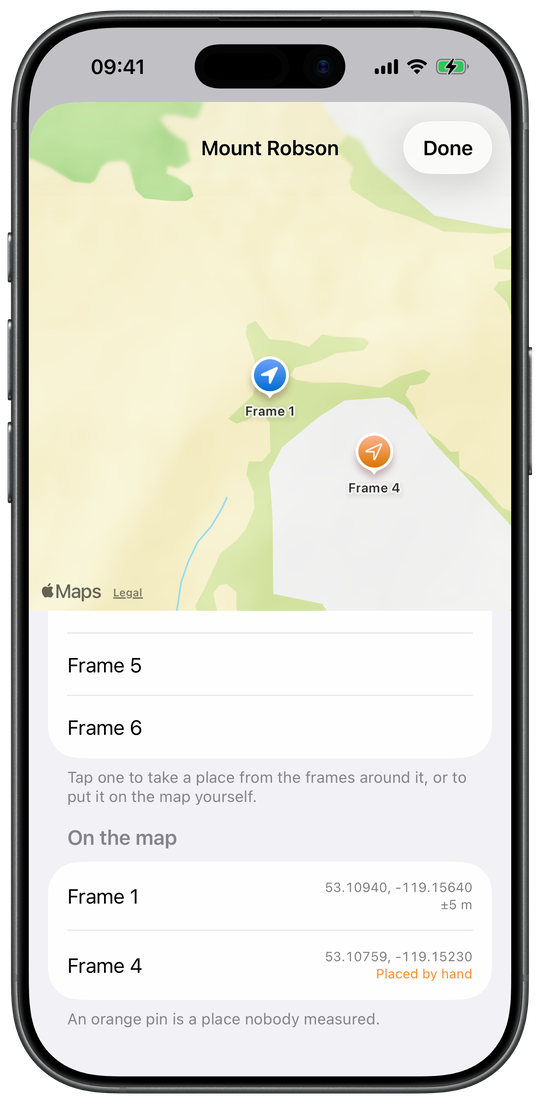
A frame that got no place can be given one. Choose a place… offers up to three sources. From another frame: the nearest frame before and after it in time that measured its own place, with how long apart they were and how far apart, so the tolerance is seen rather than asserted; where only one side has a place it says so, because then nothing bounds the guess. From a track: where a recorded track was at the frame's time (§2.13). Place by hand…: move the map under a cross and use where it points. Two rules hold. An estimate is never the source for another estimate, which stops one guess walking down a roll. And an estimate carries no accuracy figure, because the accuracy belonged to the measurement.
Estimated places, and orange pins
A place nobody measured says so where an accuracy would be: Estimated,
Placed by hand or From a track, in orange.
On maps it is an outlined orange pin; a measured place is a filled pin. It is written
onto the scan with EXIF:GPSProcessingMethod set to MANUAL
(§8), the standard way to say a person asserted the position, and all
three apps say it the same way.
Frame map
⋯ → Frame map puts the roll's frames on a map, frames at one spot sharing a pin. Under it, the frames that recorded no place, then those on the map; tap any of them to choose its place, which is saved at once. The contact sheet's viewer opens it too, on one frame.
Fill places from a track
⋯ → Fill places from a track gives every frame that has a time and no place the position of a recorded track at that time, in one go, each marked From a track. Frames that have a place are never touched. It is offered when a track exists and the roll has such frames. A track records on the same phone in the Digital tab, or from Siri; a locked phone in a pocket logs the time, and the track supplies the place.
Place names
Tap the place line on an opened frame row and metalign asks Apple Maps for the place's name; tap again to switch between name and coordinates. ⋯ → Name the places names every place on the roll at once. A name can also be typed in the editor's Place name. Names are looked up only when you tap, the coordinate going to Apple, and are kept with the frame; they are what search finds, and they go into the shot log, the contact sheet and the phone's own scans.
How much of a name to show
Settings → Rolls & frames → A place’s name: Just the place, Place and town (the default) or Everything, down to region and country. Changing it looks nothing up again.
Section 2.7 Gear, the catalogue, and the film box
The Gear tab
Gear holds your cameras, lenses and films. A new library starts empty, and nothing has to be entered first: a roll needs only a film, which can come straight from the catalogue, and a body only to load it.
A camera: make, model, serial, format, mount
Make and Model become the scan's EXIF make and model, and metalign groups scans by model, so name a body the way you want it to appear. Serial number tells two bodies of one model apart and is written onto the scans. A body also records its format, its Mount (blank for a fixed-lens camera; the menu beside it offers mounts you already typed) and its Usual lens. Cameras have no catalogue, on purpose.
The shutter dial's range
Shutter dial: Fastest and
Slowest bound the capture bar's dial to the body's range, and
Other speed adds a marked speed in between, such as 1/50 (type
1/50; a bare 50 is refused). Left blank, the dial runs from
1/8000 to 60 seconds. B is always there.
The frame counter
Frame counter sets where the body's counter starts: see §2.3.
A lens: make, model, focal length, aperture ring
A lens records make, model, focal length (Shortest and Longest for a zoom), mount and serial, all written as the scan's lens tags. Aperture ring: Widest and Narrowest bound the dial, and Other f-number adds the half and third stops the ring really clicks at. A lens with no mount fits every body; with one, the capture bar offers it only on bodies of that mount.
A film stock
A film records Brand, Name, Box speed, Process (C-41, E-6, ECN-2 or black and white), the formats it is Available in, and notes. Push and pull are set on the roll, not the film (§2.2).
The catalogue: lenses and films
Add from the catalogue, under Lenses and Film stocks, searches a bundled catalogue and adds a row exactly as the catalogue has it; Add it by hand covers anything missing. The film catalogue also filters by process, sorts by name, ISO or brand, and shows Mine, Catalogue or All. On the New roll form, Stock opens one list of your films and the catalogue's, those sold in the roll's format first; picking a catalogue film adds it to Gear.
The catalogue mark, and your own copy
A row that came from the catalogue carries a small mark and still follows it, so an app update can correct it. Editing one of its catalogue fields asks Make this your own copy? first, and the row then stops following. What you added yourself survives the fork: a lens keeps its serial number, a film its notes and barcodes, and Use the catalogue’s version is the way back without losing either.
Suggest for the catalogue
A lens or film you added yourself offers Suggest for the catalogue: a prefilled mail to gear@metalign.org, or Copy message. It carries only the catalogue's own fields, never a serial, note or barcode, and nothing is sent until you send it.
Scanning the film box
The barcode button in the New roll form's top bar opens Scan film. Barcodes are learned rather than shipped: the first scan of a box asks Which film is this? from the films in your gear, and Link and use this film remembers it, so every scan after that is instant and sets Metered at to the box speed. That is slower on day one and right for the reason that matters: a wrong barcode in a bundled table would load Portra onto HP5 and be believed. A film's editor lists its Scanned barcodes, and swiping one away makes the next scan ask again. With camera access off, the scanner offers Open iOS Settings.
Deleting gear
Swipe a camera or lens left, or use Delete camera or Delete lens in its editor; if anything uses it, you are told what is lost first, and a roll in a deleted body goes back on the shelf with its frames. Delete film stock exists only on a film you typed in yourself, and only while no roll uses it. Shot logs already sent keep the gear they named.
Tidy the gear list
Settings → Data → Tidy the gear list… removes catalogue rows that came with an early version of the app and were never used or edited. It is offered only to libraries that were filled with the whole catalogue before August 2026.
Section 2.8 Scan pairing: writing the log onto the scans
A scan is written with the frame it is level with in the table, and nothing else binds them: not the lab's filename, not the frame number. Check the table before you write (§7).
Scan pairing
⋯ → Scan pairing on a roll (or the roll's long press on the list) opens the page where the lab's scans are lined up against the roll's frames, checked, and the log written onto them, all on the phone with no Mac. It is offered on every roll except a loaded one with no frames. The work is saved per roll and is there when you come back.
Picking the scans: From Files or From Photos
From Files is the recommended way in: a delivery kept in Files
keeps the lab's filenames, and with them the roll's order. It takes JPEG files and
folders, several at once; a folder adds the JPEGs directly inside it. A lab's download
link is saved into Files first (and a .zip expanded there).
From Photos takes photos from your library. Scans from Files sort
by filename the way the Finder does; photos sort by their date. Picking scans marks an
exposed or developed roll Scanned, and the page says so.
A folder with no JPEGs in it is refused: a TIFF delivery goes to the Mac or the browser.
The pairing table
Each row is a frame, numbered as the roll numbers it, with the scan level with it; the header counts both, 36 scans · 36 frames. Frames never move on this page; only scans do. A row with nothing to write says why: No scan, No frame, a blank frame, or a frame left out because it is marked for deletion. Long-press a scan to see it large. The roll's frames as a scan sees them: No exposure recorded is a frame that logged nothing about its light.
A frame the lab didn't scan: placeholders
Swipe a row right and choose Insert placeholder to open a gap in the scan column there, so every scan below moves down one: for a negative the lab skipped. Swipe left for Take scan out or Remove placeholder, which moves the scans below up one. Taking a scan out never deletes the file.
A negative the log missed: Insert blank frame
The same right swipe offers Insert blank frame, which adds a blank frame to the roll above that row, for a negative nobody logged; every frame below is renumbered. On a roll whose log has already gone out it asks first. A blank frame's scan gets the roll's facts and its number, and no date, exposure or place.
Arrange, Reverse order, and the Scans menu
Arrange shows the scans alone with drag handles: drag one up or
down to pair it with another frame. The Scans menu adds more
(Add from Files, Add from Photos),
Reverse order for a delivery numbered backwards, and
Remove all scans to start over; nothing is deleted, and the roll
goes back to the state it had before the scans were picked. When every picked photo is
named like IMG_1234.JPG, the page asks you to check the order, because
Photos has renamed them and no sort can recover the lab's.
What the page warns about
Orange sentences above the write say what a write would get wrong, and none of them blocks it. They name the frames that get no file and suggest a placeholder if the lab skipped one; count scans past the last frame, which get nothing (and say the missing blank frame may belong at the top, for a lab that scanned the wind-on frames); count blank frames that have a scan, which "may be exactly right"; name frames left out because they are marked for deletion; and name scans this device cannot open right now. A roll with no camera, or with no capture times, is told what that costs. The full reasoning behind these: §7.
Worth a look
A folded section, Worth a look · 2, lists what may be wrong without being certain: two frames logged seconds apart at the same place on a roll with more frames than scans (a press logged twice?), and, on a roll with scenes, a run of scenes that looks more like the scan one row up or down (§2.9). Tap a line to open that row.
The pairing card and its map
Tap a row for its card: the scan large (beside its scene, if there is one), the frame in full, and a map with this frame and up to three rows either side that recorded a place. A hollow number on the map is a place worked out rather than measured. Open the full map zooms out, with sliders for Rows either side, Time apart and Distance. The card steps to the next row by a swipe, and offers Insert placeholder above, a note, a rating, marking for deletion, and turning the scan.
Editing a frame from the table
Hold a row down for Edit frame, Write a note, Flag this frame, Rating and turning the scan. A left swipe marks the frame for deletion; it then reads Left out: marked for deletion and the scans below move up one. Edits go to the roll itself.
Turning a scan
Turn left and Turn right turn a scan from Files a quarter at a time. The write sets the JPEG's orientation tag and leaves the pixels alone, so nothing is lost. A photo from your library is turned in Photos instead, and is written as it looks there.
Where the written scans go
For scans picked from Files, Write to offers three places. Photo album (the default) puts written copies into an album of their own in Photos, named after the roll, and leaves your files alone; because the date is on the file before it goes in, they land in your library at the time you shot them. New folder copies them into a folder you pick in Files, or into a folder named for the roll inside it with Create subfolder, and leaves the delivery as the lab sent it. Overwrite files replaces each file you picked by itself with the log written on, where it sits: no copy, and no way back.
Scans from Photos: edited in place, and Revert
A scan picked from Photos is edited in place as a Photos edit, so it keeps its place in your library and Photos keeps the original underneath: open it and tap Revert to undo. Photos still sorts it by the day you imported it, since iOS lets an app change a photo's date only if the app put it there; writing to an album instead files a roll from 1998 under 1998.
Write N scans: JPEG only
Write 36 scans writes the log onto every row that has both a frame and a scan. Each JPEG is copied with new metadata and its pixels untouched, never re-encoded, then read back; if the capture date did not land, the copy is thrown away and your scan is left as it was. A TIFF cannot be written on iOS, which cannot give a TIFF a capture date, so a TIFF delivery goes to metalign on the Mac or in a browser. While it writes, the page cannot be left; afterwards a report says how many were written and where to look, and Write again says what a second write would do. A failed run keeps the pairing, and what was written stays written.
What the phone writes, and what it doesn't
Dates with their time zone, camera, exposure, lens, place, title, caption, keywords, rating, creator and copyright, and the film itself in metalign's own namespace; the full table is §8. Two things it does not write: the EXIF flash tag, and an IPTC block. A place nobody measured is marked in the XMP packet only. Where to write a roll, on the empty page, says the same and names the other two apps (§9).
The pairing is kept, and Update the table
Every change on the table is saved for that roll on the device, and comes back when you reopen it: the order, placeholders, turns and where to write. If the roll changes while the page is open, Update the table re-lines the column so each scan follows its frame; reopened after changes, the page says what moved since the pairing was saved. Roll details → Danger zone → Clear scan pairing starts it over.
A pairing from another device, or from a shot log
With iCloud sync, a pairing made on your iPad is offered on your iPhone, and the other way round, as a card above the table: Use your iPad’s pairing or Keep this pairing. A shot log that carries a pairing offers it the same way. Only names travel, never the files: pick the same delivery here and each row fills by name, with no pairing done twice. A scan this device cannot open yet shows as Missing, with its name, until you pick it.
An old roll from its scans
On a roll with no frames (one created with Already shot, for instance) pick the scans first, then Add 36 frames, one per scan…: one frame per scan in table order, optionally with times and a lens. Fill in what you remember afterwards, then write. This is how a roll shot before metalign gets its metadata.
The wide table, on iPad or an iPhone turned sideways
With enough width the table becomes columns: Scan, Frame, Shutter, Aperture, ISO, Lens, a place pin and Time, with each scan dragged by a handle at its left. Repairs are in the long-press menus of a scan (placeholder, take out) and of a frame (blank frame, mark for deletion). With less width it drops Lens, then Time, then ISO.
Scan pairing settings, and the scans the app keeps
Settings → Rolls & frames holds Scan size (Standard or Large), where a frame's scene sits beside its scan, and where the full map's sliders start. Keep a thumbnail of each scan (on by default) keeps a small copy, about 50 KB, of every frame written, for the roll's pictures, the contact sheet and the share card; Keep the full scans too keeps the whole written file as well. Both are listed with their sizes under Roll details → Scans kept by this app, and cleared there. Your scans stay where you put them.
Section 2.9 Pictures: scenes, contact sheets, the negative preview
A frame's picture: Scene, then Scan
Once a roll has been written on this device, each frame's row shows its scan. Before that, a frame logged from Scene (§2.3) shows what the iPhone saw, marked as the phone's picture, and the frame editor has a Scene or Scan section. A button in the frames' header hides or shows the pictures. Scenes stay on the device that took them and are never synced, shared or written anywhere.
Scenes against scans: a skipped negative, found
On a roll with scenes, Scan pairing compares each scene with the scan on its row and the rows either side, on the device. Where a run of scenes looks more like the scan one row up, Worth a look says so in words (From frame N on, the scenes look like the scan one row up.) and that frame's negative may not have been scanned (a placeholder fixes it); one row down, that the scan may be a frame the log does not have (a blank frame fixes it). It suggests; it never moves anything.
Contact sheet, on the Rolls tab
Once some roll has kept thumbnails, the Rolls tab's toolbar switches between As a list and Contact sheet: every written frame as a grid, grouped by roll, newest first. Pinch to change the number of columns; search narrows it. Tap a picture for a full-screen viewer that swipes through the roll, zooms, shows the frame's details, and offers Share photo and Go to in roll. Long-press a picture to Copy it: the kept scan, or else the thumbnail, unchanged. Rolls written on the Mac have no pictures here.
Make contact sheet: a printable PDF
⋯ → Make contact sheet builds a PDF of one roll, with a live preview: how many frames per row, portrait frames upright or not, and each detail beside the frame's number, under the picture or not shown. The paper is A4, or US Letter where the region measures in inches. Share it to print or save. Offered when this device kept thumbnails of the roll.
Find a frame from a photo
Find a frame from a photo, in the Rolls tab's share menu, takes a scan metalign wrote and finds its frame, by this device's pairing or by the tags on the photo, then opens its share card. A photo metalign did not write is told so, never guessed at. Nothing is written.
Negative preview: the negatives as positives, live
The viewfinder button at the top of the Rolls tab opens Negative preview: hold the phone over a strip with light coming through it (a light table, a window, a second phone showing white) and the film is shown as the print it would make. Tap an unexposed bit of film, the edge or a gap between frames, and the orange mask is measured off it; that is taken fresh every session and never stored. Three colour balances, a contrast and a Black and white switch can be saved as a preset, one of which can be Open with this preset. It is a loupe, not a scanner: nothing is photographed or saved.
Section 2.11 Exporting, importing, and corrections from the Mac
Export for metalign: the Export screen
Export for metalign (the share button at the top of a finished roll, ⋯ while it is still loaded, or a roll's long press) opens a screen that shows what the roll's shot log holds (the roll, its frames, camera, film, how many frames have a place and an exposure), any warnings, the ways to hand it over, and the JSON itself under Preview. Every route sends the same bytes. Opening the screen sends nothing.
Read before you send
Four warnings are properties of the document, so they apply whichever route you take: frames marked for deletion (left out, later frames numbered as if they were gone); frames logged with the app closed and not confirmed yet, "Check them for a press logged twice before you send this log"; "This roll has no camera set, so the scans get no Make/Model, and metalign groups by model"; and "No frame has a capture time, so no dates will be written." None of them stops the export.
Export shot log: the file
Export shot log writes <roll> — shot log.json
and opens the share sheet: AirDrop, Files, Mail, anything. It needs no network and no
Mac in the room, and it opens in metalign on the Mac, in a browser, or on another iPhone
or iPad. The roll is marked exported once the share completes.
Open in a browser
Open in a browser opens metalign web at web.metalign.org in your browser with the roll already loaded, ready for your scans (§5). The log travels inside the link, in the part of an address a browser never sends to a server, so it reaches no server; it does go into that browser's history.
Import a shot log
Rolls → Send or import a shot log → Import a shot log takes one or
several .json files, and shows what each would add or change before anything
is written: the roll, its frame count, the film and body it names. Gear it would create is
called out separately and in orange, because finding a camera in your list that you
never added is worse than being told first. A shot log carries the whole roll, flags and
marks for deletion included, where it is kept, its expiry, its canister number unless
one of your rolls already has it, and which route logged each frame. What no file
carries is pictures: scenes, thumbnails and full scans stay on the device that holds
them. Moving a roll to another iPhone is an export there and an import here, or iCloud
sync.
Importing a roll that is already here
A file for a roll the library already holds is read as an update, not a second roll. Its row says Already here and counts what would happen: frames it adds, frames that differ, frames the file does not have, a different order, different roll details; a file that matches exactly says Nothing to change. One question covers all the files you picked: Take the file’s values, or Keep the newer of each, which keeps whichever version of a frame was edited last (a tie goes to the file, because editing a shot log in a text editor does not change the time stamped on a frame). The question counts how many frames each answer changes. Either way a frame only in the file arrives in its place and a frame only on the phone stays, since a file cannot say that a frame was deleted; only Take the file’s values brings back a frame deleted here. The roll's state, camera and dates are never changed.
A shot log with a scan pairing
If the roll's scans were paired on the other device, the imported roll keeps that pairing by the scans' names. Scan pairing then opens with every row where it was, each reading Missing with its scan's name, and fills by name as you pick the scans. On a roll already here, the file's pairing is offered and never replaces one made on the phone.
When an import is refused
A file that is not a shot log, cannot be opened, is a newer version than the app reads (Update metalign.), or carries an impossible value (a frame number no roll has, a rating outside one to five, a latitude no place has) is refused and named by its filename; the other files still import. Two files for the same roll at once are refused by the roll's name. A roll whose camera now holds another roll asks what becomes of that one, as loading does (§2.2).
Opening a shot log from Files, AirDrop or Mail
metalign is offered for any .json file, in Files' Open
With and among AirDrop's apps, though never as the default for JSON. Opening one
shows the import sheet; a corrections file opens the corrections sheet instead.
Corrections from the Mac, as a file
A frame corrected in metalign on the Mac (§4.8) can come back to the phone. A corrections file opens a Corrections sheet that lists, per roll, every change as field: before → after and any blank frame it inserts, and Apply to … writes them. Corrections overwrite only the fields they list, on the frames they name; a frame edited on the phone since the export is skipped and says why, and the same file twice is refused. Nothing changes until you apply.
Receive corrections from your Mac
Rolls → Send or import a shot log → Receive corrections from your Mac… makes the iPhone visible, while the screen is open, to the Macs it trusts. On the Mac choose File → Send corrections to your iPhone…, search, and send; the corrections arrive in a Received list, encrypted, and Review… opens the same sheet. Closing the screen drops what you did not apply; the Mac can send it again.
Section 2.12 To the Mac, and iCloud
Send to metalign on your Mac
Every send screen has Send to metalign on your Mac. Search for metalign lists the Macs that have metalign's Receive… panel open (§6.2); tap one and the log goes. The search never starts by itself. The first time, a Mac has to be trusted, by comparing a code (below). The exchange is encrypted, goes only to a trusted Mac, and sending twice is harmless. A Mac running an older metalign is greyed out with Update metalign on this Mac. The file is always there as the other way.
The Mac's receipt
After a send, a green line says what the Mac decoded, not what the phone said it sent: "Roll 12 — 36 frames received on Studio-Mac." It is kept with the roll's sent mark and shown again on the roll's card, so you know it arrived while you are still standing there. The file and browser routes have a date and no receipt.
Trusting a Mac: comparing a code
Tap a Mac marked Not trusted yet · tap to trust, or Settings → Trusted Macs → Trust a Mac…. Both screens show the same six-digit code; tap Same on the phone and on the Mac, and each keeps a key for the other in its Keychain. Different, or closing the sheet, keeps nothing. Trusting sends no roll. From then on every exchange with that Mac is encrypted with that key. Keys are never synced, so a new iPhone trusts again.
Trusted Macs
Settings → Trusted Macs lists each Mac with the day it was trusted. Swipe one left to Forget it: nothing more goes to it until you compare a code again. The Mac keeps its own record until it forgets the iPhone too, and a Mac that has forgotten the iPhone says so on the send screen.
Send multiple
Rolls → Send or import a shot log → Send multiple ticks every
unarchived roll with frames (change the ticks as you like), then Send N
rolls sends them all to one Mac with a status per roll, or
Export as files shares one .json per roll.
Handoff: metalign in the Mac's Dock
While a roll is open on the unlocked iPhone, a Mac signed in to the same Apple Account shows metalign at the end of its Dock. Click it and the Mac opens on the roll (§6.3). No code to compare, since Handoff joins only your own devices; Handoff has to be on for both. A locked iPhone withdraws the offer.
Sync with iCloud
Settings → iCloud → Sync with iCloud is off until you switch it on. On, rolls, frames, gear, settings, scan pairings, stopped tracks and kept full scans are the same on every device on your iCloud account, through your own iCloud: metalign has no server of its own. Not synced: scene pictures and thumbnails, a track still recording, per-device settings, trusted Macs. Where two devices logged into one roll, capture time is the physical frame order; a later edit wins whole rather than being stitched together field by field; a roll deleted on one device is deleted on the others. Switching it off keeps the local library.
Status and Last synced
Two rows report sync rather than one: Status (Syncing…, Up to date, Not syncing with the reason, or No iCloud account) and Last synced, because a launch that has not reached iCloud in a week sits at Syncing…, which reads exactly like a device that synced a second ago. Orange counts appear when a newer version of the app on another device saved something this one cannot read (Not read, Not sent back) or when files could not be stored (Not taken); updating metalign fixes the first two.
I already use metalign on another device
On first launch, I already use metalign on another device switches iCloud sync on and skips the setup: Your library is on its way. The library arrives in the background, if the other device syncs too.
Section 2.13 The Digital tab: tracks and the Sync Clock
The Digital tab is for a digital camera shot beside the film one: a GPS track to geotag its photos, and a clock to correct its time. Both are used on the Mac (§4.3, §4.2). The Digital tab never needs the full version.
Recording a track
Digital → Track → Start recording records where you went, a point every 5 seconds or 10 metres, until Stop recording; the row says Recording since meanwhile. Each point is saved as it arrives, so a closed app loses nothing recorded, though recording does not resume by itself. With Location set to While Using a track records only while metalign is on screen; recording with the phone in a pocket needs Always, which starting a track asks for. A track can also be started by Siri (§3.7) and can place film frames too (§2.6).
Tracks, and sending one
Every track is listed with its name or start time, points and duration, a red dot while recording and a green mark once exported. Tap one for its page: rename it (the name goes into the GPX), see its points and times, send it to a Mac with the Mac's receipt, or Share GPX. A GPX 1.1 file with UTC times is what metalign on the Mac reads. Swipe a track left to delete it, after a question; with iCloud sync on, that deletes it everywhere. Clear exported mark un-marks a track whose share never reached a Mac.
Send all tracks
With two or more tracks, Send all tracks sends them as One file (one GPX, each outing its own named track) or Separate files, to a Mac or through the share sheet.
The Sync Clock
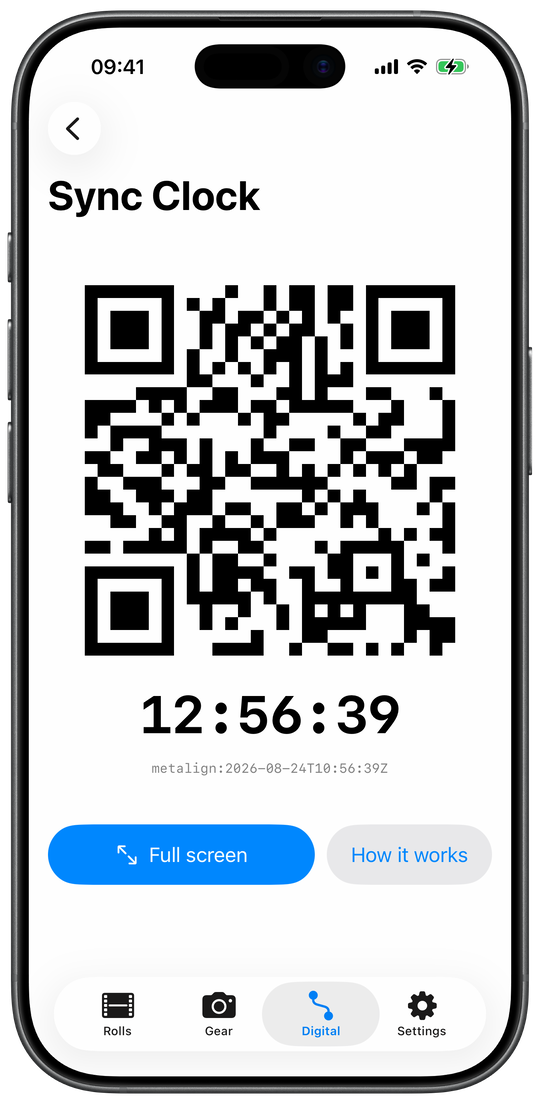
Digital → Sync Clock draws a QR code that changes exactly on each
second, carrying metalign: and the time to the second in UTC, above the local
time. Photograph it with the digital camera whose clock is wrong, and metalign on the Mac
reads the true time back out of that shot (§4.2). The
photograph is the carrier, so it needs no network and no clock on either machine being
right. It is for digital bodies: a film frame's time is stamped at the shutter.
Full screen shows the code alone at full brightness and keeps the
screen awake; How it works has the three steps.
A manual offset for the clock
Settings → Sync Clock shifts what the clock shows by up to twelve hours, adjusting by seconds, minutes or hours, for an iPhone whose own clock you know to be off; the clock screen then says so in orange. It never changes a frame's time.
Section 2.14 Settings, the first launch, and the full version
Defaults for new rolls: Creator, Copyright, Default body
Settings → Defaults for new rolls holds Creator and Copyright, copied into every roll you create from then on and written onto its scans, and a Default body, preselected on New roll when it takes the roll's format. An existing roll is changed in its Roll details.
Rolls & frames
Settings → Rolls & frames gathers how logging behaves: location for each frame, carrying settings to the next frame, what happens to a roll swapped out of a camera, the capture bar's size and the Scene button, the Rolls list's Log frame button, the blue dot per route, what the swipes do, what a row shows, the editor's section order, deleting in Rearrange, Scan pairing's pictures and map, and how much of a place name to show. Each is described where it acts, above.
Permissions
Settings → Permissions → Location access shows what iOS allows and offers Request access or Open iOS Settings. metalign asks for each permission when it is first needed, never at launch: location (While Using) on the first loaded roll; Always only to record a track in a pocket; the camera for the barcode, Scene and the negative preview; Photos when scans are picked from or written to it; the local network when you first search for or trust a Mac.
The full version
Two rolls can be started without the full version. From the third, New roll offers it: one purchase, not a subscription, for as many rolls as you like. Every roll you already have can still be logged to its end, and importing, editing, exporting, writing scans, sync and the Digital tab never need it. Archived and imported rolls count towards the two. Settings → Full version shows whether it is unlocked and has Restore purchases; the purchase belongs to your Apple Account, so another iPhone or iPad on that account reads it too. Without a connection, or with purchases blocked in Screen Time, the sheet says so.
Data: a copy for a bug report, and resetting
Settings → Data → Save a copy for a bug report puts your rolls, gear and settings, earlier versions of each roll and rolls deleted in the past month into one file for whoever is helping you; tracks and pictures are left out, nothing is sent by itself, and it is not a backup: metalign cannot restore from it. The phone keeps those earlier versions beside the library for that purpose alone. Under Reset: Delete every roll, Delete every track, and Erase all app data, back to a fresh install on this device (the purchase stays with your Apple Account). With sync on, deleting reaches every device; erasing does not.
When the library cannot be saved
If something goes wrong with the library, Settings says so at its top: Previous library (an old file could not be read; save a copy of it), rolls that could not be read, Nothing is being saved (quit and reopen after unlocking) or Changes aren’t being saved (usually a full disk).
About, What's new, How metalign works
Settings → About has Statistics (§2.2), How metalign works (the steps, logging with the iPhone locked, every swipe and long press, and every one-time hint, so a hint dismissed can be read again), What’s new (every build's notes, also shown once after an update), the Shot log format the app reads, and the version.
The first launch
The first launch shows A logbook for film. and the steps, then Set up metalign (a first camera, location, your name on the scans, each skippable), I already use metalign on another device, or Skip for now. Nothing is required before a first roll.
Hints on the screen
One-line hints appear once where they help (swiping a roll, searching, a finished roll not yet handed over, logging while locked, frames with no place), at most one new one per launch, and go for good on ✕ or once you have used what they teach.
Section 3 Logging without the phone's screen
The capture bar is for a phone already in your hand. Most of a roll is not like that, so a frame can also be logged from Apple Watch, a widget, a control, the Lock Screen, Siri, a shortcut or the Action button, without opening the app. Each of these records the time and the camera; none of them ever guesses an exposure.
Section 3.1 Which route records what
A frame logged without dials in front of you records no exposure, and it is never copied from the frame before. An exposure is either set by a person (on the watch's dials, in a shortcut, or spoken to Siri) or it is not recorded.
| Route | Exposure | Which roll | On a locked iPhone |
|---|---|---|---|
| Capture bar, in the app (§2.3) | The dials | The roll on screen | Not available |
| Log frame on the Rolls list (§2.1) | None | That row's roll | Not available |
| Apple Watch, roll page and camera grid (§3.2) | None | The roll shown, or the camera tapped | Not involved: the watch logs on its own |
| Apple Watch, dials page | Shutter, aperture, lens and flash as set | The roll shown | Not involved |
| Home Screen widgets (§3.4) | None | The roll the widget shows | In StandBy, asks for Face ID first |
| Log Frame control (§3.5) | None | The body in hand, else the roll loaded last | Logs at once, no prompt |
| Live Activity and Dynamic Island (§3.6) | None | The roll on the card | Asks for Face ID first |
| Log Frame by Siri, Shortcuts or the Action button (§3.7) | Only what the shortcut sets | The roll or body named, else the body in hand, else the roll loaded last | Runs locked |
| Log with Exposure (§3.7) | What the shortcut sets, or what you say when asked | As Log Frame | Runs locked |
The place on a frame logged away from the app
Every route stamps the time, the time zone, the body and the body's mounted lens. The place is added when Settings → Rolls & frames → Log location for each frame is on. On the phone, a frame logged with the iPhone locked gets the place only if the phone already had a position in the last two minutes, while a track is recording, or with Location set to Always in iOS Settings; otherwise it gets the time alone, and a place can be added later (§2.6). Apple Watch is not affected: it takes its own fix (§3.2).
Every one of them arrives with a blue dot
A frame logged with the app closed (from the watch, a widget, the control, the Live Activity, Siri, a shortcut or the Action button) arrives with a blue dot, so you can look at it and confirm it later (§2.4). The capture bar and the list's Log frame button add none. Each group can be switched off under Settings → Rolls & frames → Blue dot.
Every frame says how it was logged
A frame records which route made it, for example Logged from the Live Activity, and the frame editor shows it. That answers "why has this frame no exposure?" months later. It is kept in the shot log, so a roll imported elsewhere still says it, and it never reaches a scan: there is no EXIF tag for how a shutter release was pressed.
Section 3.2 Apple Watch
metalign on Apple Watch logs frames onto the rolls loaded on your iPhone. It comes with the iPhone app (it is not a standalone watch app) and needs watchOS 10 or later. Its pages run sideways: the roll page, a camera grid when two or more rolls are loaded, the dials, Load film when there is film to load, and About.
Logging a frame from the wrist
The roll page shows the camera, the film, the count (13 / 36), the day and time of the last frame, and a large Log frame 14 button. A press logs the next frame with the time, the place and the body's lens, and no exposure. A tap on the wrist confirms each press. The count turns orange once the roll is full and keeps counting past it; on a body whose counter starts below 1 it reads −2, −1, 0 through the leader.
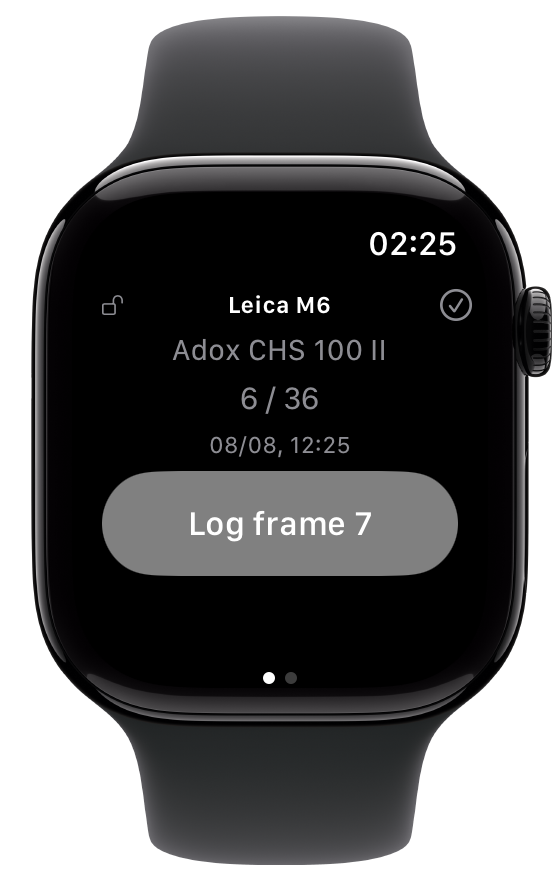
Several cameras: the Digital Crown and the camera grid
With several rolls loaded, turn the Digital Crown on the roll page to step from body to body. It is one page, not a page per camera. Swipe left for the camera grid: one cell per body, two across, each with Log N; tap the camera you just shot to log onto it. The camera in hand is drawn green. A press on the watch also sets the iPhone's body in hand, so the next Action-button press lands on the same camera (§2.1).
The dials page: an exposure from the wrist
The dials page has two wheels, shutter and aperture, built from the body's shutter dial and the lens's aperture ring, a Lens row, and a flash bolt in the corner. Its Log frame N button records what the wheels show. The wheels start from the roll's last exposure and stay where you leave them, so a run at one setting is set once. Each wheel ends in "—", which logs no value; with both on "—" the page says Logs no exposure. In the camera grid, hold a body down to open its dials, as the line under the grid says: Long-press a body for its dials. The bolt records that a flash fired until you tap it off; "did not fire" is set later on the phone.
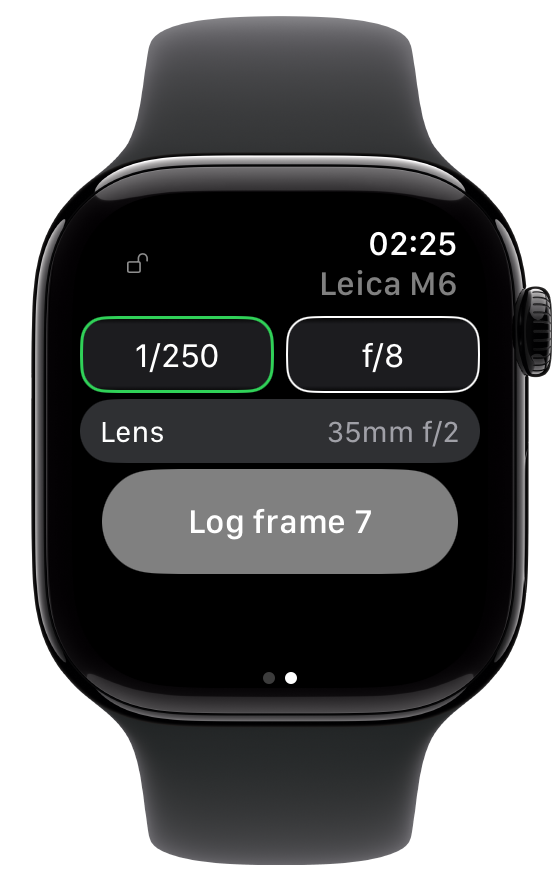
Logging with the iPhone out of range
The watch does not need the iPhone nearby. Every press is saved on the watch before anything is sent, and the count moves at once. Presses the phone has not taken yet show as a yellow line, 2 waiting for iPhone, and they are delivered when the phone is back in range, even after the watch app was closed. A press that waited is placed on the roll by the time it was made, not the time it arrived. Tap the yellow line to undo the newest waiting press (Undo frame N?).
The place, from the watch's own GPS
With Log location for each frame on (an iPhone setting), each press switches on the watch's GPS for up to 15 seconds, stops as soon as it has a fix within 50 metres, and stamps that place on the frame. A fix up to two minutes old is reused, so a burst of frames costs one GPS session. The watch asks for its own location permission. Without a fix, the frame takes the phone's current position only if the phone already had one within two minutes; the phone never switches its GPS on for a wrist press.
Lock page
The padlock in the corner of every page locks the watch on that page, so a stray swipe does nothing. The crown and the grid's long press still work. The watch also reopens on the page you used last.
Loading and finishing a roll from the wrist
Load film lists the rolls ready to shoot; tap one, then the camera. The ✓ on the roll page finishes the roll (Finish roll or Keep shooting), exactly as the phone does. Both need the iPhone in range; out of range the watch buzzes and says iPhone not reachable. With the iPhone's swap rule on Ask every time, loading into an occupied camera is refused and left to the phone. The watch cannot create a roll.
With no roll loaded
The roll page says No roll loaded and to load one on the iPhone; the dials page says No dials. The last page shows the version.
VoiceOver and German on the watch
VoiceOver reads the count as "Frames shot, 13 of 36", each grid cell as one button, and offers Open dials as an action. The watch app speaks German too; refusals that come from the phone are in the phone's language.
Section 3.3 The watch-face complication
The Roll complication
Edit a watch face, choose metalign and then Roll, and the roll in your camera sits on the face. It shows one roll: the body in hand, else the first loaded roll. Four sizes: a ring filled to how far through the roll you are, with the count; a corner gauge labelled with the camera; one line beside the time, Leica M6 · 12/36; and a wide slot with the camera, the film, the count and the time of the last frame.
A tap opens the watch app on the page you used last; it logs nothing by itself. The face is drawn by the watch app, so a frame logged on the iPhone reaches it the next time the watch app hears from the phone. With nothing loaded the face shows a film glyph, and the one-line slot reads No roll.
Section 3.4 Widgets
The Roll widget on the Home Screen
A small or medium widget with the camera, the film, the count, a progress bar and a Log 14 button that logs the next frame without opening the app. The medium size adds the last frame's exposure and time. It shows the body in hand, unless you pin it to a camera: hold it down, Edit Widget, and choose the Camera. A pinned widget waits on its camera even while that camera is empty (No film), so one widget per camera works. A tap outside the button opens the roll.
The Cameras widget
A medium or large widget with one cell per loaded camera (up to four or six), each a button that logs the next frame on that camera's roll. Edit Widget picks which cameras it shows and in what order; left empty, it shows every camera with film in it. What does not fit is counted, 2 more in the app.
Lock Screen widgets
The Roll widget also comes in the three Lock Screen sizes: a ring with the count, a wide one with camera, film, count and time, and one line. None has a button: to log from the Lock Screen, use the control (§3.5).
Widgets in StandBy, and after a restart
On an unlocked Home Screen the button logs at once. In StandBy on a locked, charging iPhone the same button asks for Face ID first; that is iOS's rule, not a setting. After a restart, before the first unlock, every widget shows No roll loaded until the phone is unlocked and something is saved.
Section 3.5 The Log Frame control and the Action button
The Log Frame control
On iOS 18 and later, metalign has one control, Log Frame (Records a frame on the roll in your camera.). Put it in Control Centre, on the Lock Screen, or on the Action button, with no trip through Shortcuts. It logs the next frame on the body in hand, else on the roll loaded last, with no exposure, and its label names the number it will write. It is the one route that logs on a locked iPhone with no Face ID prompt, from the Lock Screen and from the Action button in a pocket. Five quick presses give five frames.
The Action button
iOS Settings → Action Button takes metalign two ways. As a control, choose Log Frame: it logs locked, shows nothing and needs nothing dismissed. As a shortcut, choose Log Frame, Log with Exposure or Record Track (§3.7): these run locked too, and on an unlocked phone show Shortcuts' result card; Log Frame then asks for a note.
Section 3.6 Live Activity and Dynamic Island
Showing a roll on the Lock Screen
A loaded roll goes on the Lock Screen only when you put it there: tap Show as Live Activity at the top of the roll's screen, or hold the roll down on the Rolls list. Hide Live Activity takes it off. Loading a roll does not start one. One roll at a time: showing another ends the first. It ends by itself when the roll leaves its camera (finished, swapped, archived or deleted, from the phone or the watch), and iOS ends it after about eight hours. While it shows, a small glyph on the capture bar says so. The button is not offered when Live Activities are switched off for metalign in iOS Settings.
The Lock Screen card
The card shows the camera, the roll's number, film and name, a progress bar with the count, the last frame's exposure and time, and a Log 14 button. The count follows every frame logged anywhere within about a second.
The card's button on a locked iPhone
On a locked iPhone the card's button asks for Face ID before it logs. That is how iOS treats a button inside a Live Activity, and no app setting changes it. Once unlocked, still on the Lock Screen, each tap logs a frame without opening the app. The Log Frame control on the Lock Screen is the route that logs without asking (§3.5).
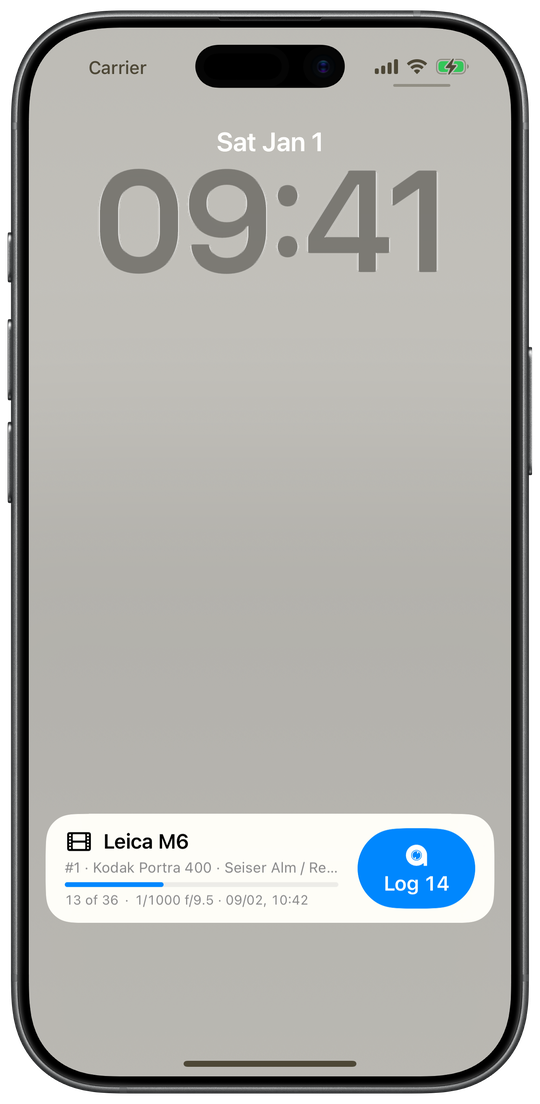
Dynamic Island
On an iPhone with a Dynamic Island, the island shows the metalign mark and the number of the frame just logged. Hold it for the expanded view: the camera, the count, the roll and a full-width Log frame 14 button, with the same Face ID rule.
Record a track?
While a roll shows as a Live Activity and no track is recording, its screen offers Record a track?. A track can give a place to frames the iPhone could not place, which matters for frames logged locked (§3.1). Not now hides it until you next open the roll. It never starts a track by itself.
Section 3.7 Siri and Shortcuts
Log Frame: a frame by voice or shortcut
Say "Log a frame in metalign", "Log a frame with metalign" or "New frame in metalign", or run Log Frame from Shortcuts or the Action button. It works with the iPhone locked and without bringing the app forward, then asks Anything to note about this frame?; an answer becomes the frame's note, silence leaves none. Siri answers Logged frame 12 on …, and the frame number is handed on to the next action of a shortcut.
In the Shortcuts editor the action takes a Roll, a
Body, Shutter,
Aperture, Flash
(Not recorded, Fired,
Did not fire) and a Note. A shortcut
that sets a note is not asked for one. Shutter is written as the dial reads it:
1/125, 30 s or B; a bare number from 1 to 60 is
refused, because it could mean 1/60 or 60 seconds. With no roll and no body set, the
frame goes onto the body in hand, else the roll loaded last. A shortcut pinned to a roll
keeps logging onto it after it leaves the camera; one pinned to a body logs onto
whatever roll is in it, so one shortcut per camera is the way to log a particular
camera.
Log with Exposure: say the exposure
"Log a frame with exposure in metalign", "Log an exposure in metalign" or "New frame with exposure in metalign" logs the frame, then asks What shutter speed?, What aperture? and for a note, each only if the shortcut has not set it, and writes what it understood. A value it could not read is named (I didn’t catch the shutter speed.) and left unrecorded; the frame stays. It has no flash parameter.
When Siri refuses
With nothing loaded Siri says No roll is loaded. Load one into a camera in metalign first.; a body named in the shortcut that holds no roll is refused the same way. If the library cannot be saved at that moment (usually right after a restart, before the first unlock) Siri says the frame may be lost and to open the app.
Record Track
"Record a track in metalign", "Start a track in metalign" and "Stop the track in metalign" start and stop a GPX track for a digital camera's photos (§2.13); the action toggles by default and takes an optional name. Starting a track from a shortcut needs Location set to Always, because a phone in a pocket collects no points otherwise; the app's own Record button works with While Using as long as the app stays on screen.
Get Shot Log
A Shortcuts action, with no Siri phrase, that hands a roll's shot log to your shortcut
as the same .json file the Export screen makes (§2.11),
for example to save it somewhere. It records nothing and does not mark the roll as
exported. It needs the iPhone unlocked, because the file carries the roll's places.
Picking a roll or a camera in Shortcuts
The Roll parameter suggests the loaded rolls and finds any roll, archived ones included, each shown as "film · N frames logged". The Body parameter lists every camera, with the roll in it or Nothing loaded; two bodies of one model are told apart by serial number.
Siri & Shortcuts in Settings, and German
Settings → Siri & Shortcuts shows the phrases for Log Frame and Log with Exposure, links to metalign in the Shortcuts app, and lists every way in that needs no screen. All of it works in German too, with phrases of its own: an iPhone and Siri set to German log a frame on Ein Bild in metalign erfassen.
Section 4 metalign desktop, on the Mac
metalign desktop is where the work goes when a phone is the wrong tool for it: a TIFF delivery, a large batch, and six sections for digital photographs that have nothing to do with film. It runs on macOS 14 or later and calls itself metalign on screen. Its Film section is where a roll from the phone meets its scans (§6.2, §7). Everything it writes, it writes with a bundled ExifTool, so no other software is needed.
Section 4.1 The app around the sections
The sidebar: seven sections under three headings
The window is a sidebar of seven sections with the chosen one on the right. Time & place: Timestamp Correction, Geotag, Coherence. Files: Metadata, Rename, Duplicates. Analog: Film. A small iPhone symbol beside Geotag and Film, explained at the foot as works with metalign on your iPhone, marks the two sections the phone can send to; neither needs it. The metalign wordmark sits in the title bar.
Loading photos: Choose photos… or a drop
Drop files or folders onto a section, or use Choose photos…. Folders are read with everything inside them, and photos loaded in one section are loaded in all of them. While loading, the status line counts the files and looks for Sync-Clock photographs. Pick the folder rather than single files when you mean to write: the app is sandboxed, and the folder is what gives it permission to write beside the photos. If it was given only the files, a write stops before it starts (metalign can read these photos but not write them, because it was given the files rather than the folder holding them) and says to drop the enclosing folder instead. Photos in ~/Pictures and ~/Downloads can be written either way.
Which files it takes
JPEG, HEIC/HEIF, TIFF, PNG, DNG and the camera raw formats of Sony, Canon, Nikon, Fujifilm, Olympus/OM System, Panasonic, Pentax, Samsung, Hasselblad, Phase One, GoPro and Leica. Anything else in a dropped folder, and hidden files, are skipped. Files are grouped by the camera model in their EXIF; a file with none goes under Unknown camera.
Only three cameras are tested
A banner above every section says so: Beta: only three cameras are fully tested, the Leica M10-P, the Leica Q-P and the Sony A7 III. Other cameras are expected to work; reading the Sync-Clock QR and the preview thumbnails are the parts most likely to misbehave. Close it with ✕ and it does not come back.
Photos that Lightroom Classic or Capture One manage
If the loaded photos carry the signature of Lightroom Classic, Lightroom or Capture One, a banner says that app manages them. metalign writes into the files, and that app keeps its own copy of the metadata in its catalog, which can go back over a change without warning. The banner says the order: save that app's pending changes to the files first, then make the change here, then choose Read Metadata from File there. The geotag writes, the timezone move and removing metadata in place repeat the warning in their confirmation.
Clear, the status line and the Log
A bar along the bottom counts the loaded photos and cameras, and Clear unloads them all from every section after a question; files on disk are untouched. Each section's footer shows progress, and Log lists what the last batch did, one line per camera.
Backups, and putting the originals back
Every write that changes a photo can keep an untouched <file>_original
beside it, and does by default. When any loaded file has one, the footer of Timestamp
Correction and of Geotag shows N backups: Restore
originals… puts every such file back as it was before the first backed-up write,
whichever section made it, and Delete originals… removes the
backups for good. Each asks first. The backups are found on disk, so this also works on a
folder dropped again in a later session.
Jumping to a file's metadata
The table icon on a row of the correction preview, and Show metadata in Duplicates, open that file in Metadata. Coherence's Go to Timestamp Correction does what it says.
German
On a Mac set to German the whole app is German, and its Film section is called
Scans. The folders it creates (Scrubbed,
Duplicates) keep their English names.
About metalign
About metalign in the app menu shows the version and the bundled components: ExifTool, Perl, and the XCharter typeface.
Settings: Geotag and Devices
Settings (⌘,) has two panes. Geotag sets the Default max time gap for new sessions (30 minutes out of the box). Devices lists the Trusted iPhones, each with the day it was trusted and Forget…; a forgotten iPhone has to be trusted again before it can hand anything over.
Menus and the Dock
The File menu has Send corrections to your iPhone… (§6.5). The Sync Clock and About are separate windows, and the app quits when its last window closes. A roll open on the iPhone appears as metalign in the Dock (§6.3). The app opens no files by double-click: they come in by a drop or a picker.
The local network, and trusting an iPhone
macOS asks once for the local network, the first time a receive panel opens or the Mac searches for an iPhone. The Mac is visible on the network only while a Receive… panel is open; otherwise it advertises nothing. A new iPhone asks to be trusted inside that panel, with a six-digit code shown on both screens (§6.2). The app sends no telemetry and checks for no updates. Maps in Geotag and Film load Apple Maps tiles.
Section 4.2 Timestamp Correction: fixing a camera's clock
A correction fixes a clock that was wrong. A timezone move fixes a clock that was right for somewhere else. Correct first, then geotag: geotagging matches each photo's time to a track.
Correct Photo Timestamp, camera by camera
Correct Photo Timestamp groups the loaded photos into one card per camera, by EXIF model, and each card carries its own correction. Set the true time per camera, check the preview, apply.
The Sync Clock window
Sync Clock in the header opens a white window with a QR code and the
Mac's time, changing on every second. Photograph it with each digital camera whose clock
is off. The code holds metalign: and the time in UTC to the second; the phone's
Sync Clock draws the same code (§2.13), so either screen will do.
The Sync-Clock photo, found by itself
On every load, each photo is checked for a Sync-Clock QR. For each camera the most recent
such shot becomes the Reference shot (Sync-Clock photo), under it
Camera says: with the time the camera stored, and its QR time fills
True time (from QR). Only codes starting with
metalign: count. A small or blurred code, or a raw file with a small embedded
preview, may not be read. If a camera has several QR shots that disagree by a second or
more, the card says by how much and uses the latest (N Sync-Clock shots
disagree by up to …; using the most recent.); pick another to override it.
Setting the true time by hand
Without a QR shot, pick any shot whose real time you know as the reference and type it in True time (enter manually), to the second, on a 24-hour clock. A QR time is locked; the pencil unlocks it. A typed time is read in the Mac's time zone.
Camera timezone
Camera timezone sets the zone in which the camera's clock is read, the Mac's own by default. It only interprets; it never rewrites a photo into another zone. It feeds the offset, Coherence and geotagging, where daylight saving is handled photo by photo.
The offset: fast or slow
Offset shows how far the camera's clock was off, to the second: camera runs fast, camera runs slow or clock is correct. Every file of that camera is shifted by the opposite amount.
Preview every change before writing
N files — preview changes under each card lists every file's stored time and its new time. Files without a readable date are listed and never written. Combine raw + JPG (on by default) lists a raw and its JPG of the same name as one entry; both are still shifted.
Keep original files as backup
Keep original files as backup (_original), per camera and on by
default, keeps an untouched copy beside each file the correction, geotagging or timezone
move changes, for example L1000042.DNG_original.
Apply all
Apply all shifts every camera's files by that camera's own offset, in one pass. It rewrites the EXIF capture dates and leaves the files' modification dates alone. It asks no question, and it skips cameras with no offset and files with no date. Undo is Restore originals…. Before the first shift, each file's original capture date is stamped once into metalign's own XMP namespace, and Metadata shows it as Pre-correction original; nothing restores from it automatically.
Removing a camera from the list
The ✕ on a card (Remove this camera) removes that camera's photos from every section, without asking. Files on disk are untouched; drop them again to bring them back.
Timezone…: moving photos into the zone they were taken in
For a body left on home time abroad (shot in Tokyo, clock on Berlin time), Timezone… opens Move to another timezone. Per camera, choose where the photos were taken (Choose a zone…, with a filter, or Leave this camera alone); the sheet shows the shift and two real filenames with their old and new times. Move timestamps asks first, then rewrites the capture dates and records the new zone's offset in each file. A trip across a daylight-saving change is moved by two different amounts, each written separately, and the sheet says so: These photos straddle a daylight-saving change, so they move by two different amounts. Each is written separately. Photos with no readable date are left alone and counted. Correct any clock drift first: a timezone move moves the clock, it does not fix it.
Section 4.3 Geotag: GPS from a track
GPS Geotagging
GPS Geotagging writes GPS tags into the loaded photos by matching each photo's capture time to a location track, reading every camera's times in its own Camera timezone. It works for any camera without GPS. Correct the clocks first (§4.2).
Adding tracks
Add track… takes one or more GPX or KML files. Several are matched as one: each photo takes the position nearest its own capture time, so a trip logged a day per file needs one pass. A file without timestamps is accepted but places nothing. The list lasts for the session.
A track from the iPhone
Receive from your iPhone… makes the Mac visible to metalign on a trusted iPhone while the panel is open; send the track from the phone's Digital tab (§2.13). A received track is checked (readable GPX, with points and times, or the phone is told why not), saved unchanged on the Mac, and used at once if no track is chosen yet; later ones have Use. Sending a second day adds a track rather than replacing the first.
Max time gap and interpolation
Max time gap (1 to 720 minutes, 30 by default) is how far a photo may sit from a track point before it is left untagged; widening it is the first fix for photos that were not placed. Interpolate between points (on by default) places a photo between the two points around it; off, it snaps to the nearest.
Fetch & preview, then write
Fetch & preview works out every position without writing anything and opens Geotag preview: places as clusters with thumbnails, a map with pins, and No location (N) for photos the track did not cover, with the options to widen and Re-fetch. Write these tags writes exactly what the preview showed, after asking whether the clocks were corrected first. Write GPS tags without preview, on the arrow beside the button, writes straight away after the same question. Backups follow each camera's switch.
Section 4.4 Coherence: do the cameras agree?
Cross-camera coherence
Cross-camera coherence groups every dated shot from all cameras into moments, shots within the Event gap of each other (30 seconds by default), and reports how closely the bodies agree on the moments two or more of them shot. It never writes. Before shows the cameras' own clocks, After the corrected times as set on the cards, whether or not they are applied yet, so a correction can be checked before it is written.
The verdict, the timeline and the shared moments
The top card gives the verdict, for example Cameras agree to ≤1 s after correction., against how far apart they were before. The Session timeline has a lane per camera and a dot per shot, with guides at moments several bodies shot together, and Shared moments lists each one with its spread before and after. With no true times set, it says to set them in Timestamp Correction; with no shared moment, it says there is nothing to compare yet.
Section 4.5 Metadata: view, edit, strip before sharing
Viewing a file's metadata
The list on the left holds every loaded photo by camera; files dropped here go under Inspected files, for a one-off look, and join nothing else. The selected file shows summary cards (Camera, Lens, Exposure, Capture, Image & file, Location) and under them All metadata: every tag ExifTool reads, grouped, with a Filter. Viewing never writes.
Editing: Edit, and Apply to
Edit changes a fixed set of fields: Artist /
Creator, Copyright, Title,
Description / Caption, Keywords,
Rating, Label, and for a manual lens the
camera cannot identify, Lens model, Focal
length and Aperture. Apply to writes
to this file, all files of its camera, or everything loaded. Only changed fields are
written, an emptied field deletes its tag, keywords replace the list, and an
_original is always kept.
Remove…: strip metadata before sharing
Remove… opens Remove metadata, for a photo you are about to share: tick what goes, and everything else stays. Ticked by default: Location, Place names, Owner name, Serial numbers and Software and edit history. Not ticked: Creator and copyright, Maker notes and Capture date and time. Categories the file does not have are marked.
Scrubbed copies, or the files themselves
By default each file is copied into a Scrubbed folder beside it and only the
copy is stripped; your files are untouched. These files strips the
files themselves, with an _original beside each. The scope is this file, its
camera, or everything loaded.
Section 4.6 Rename: filenames and folders from metadata
Rename & Organise, and the pattern
Rename & Organise builds new filenames from each photo's own
metadata with a Pattern, by default
{date}_{model}_{n:4}; a / makes a subfolder. Every new name is
listed before anything moves, and each file keeps its extension. Numbers restart per
folder, in order of capture time. Dates are the camera's own clock, so correct it first.
Pattern tokens and presets
The ? button lists the tokens: {date} and
{time} (with a format, such as {date:yyyy-MM}),
{camera}, {model}, {orig} for the existing name, and
{n}, a sequence number ({n:4} pads it to 0001).
Presets fills in common patterns, such as a folder per day or a
folder per camera and day.
Why a file will not move
A row that will not move says why, in orange: already named that, no capture date, no camera, two files want this name or a file is already there. Nothing is ever overwritten.
Rename, and Undo rename
Rename N files asks, then renames; each file's
_original and its .xmp sidecar move with it, and a raw and its JPG
share one number. Undo rename puts the last batch back, one level
deep and only until you quit.
Renaming film scans by roll and frame
With Film scans loaded, a switch chooses between Loaded photos and
Film scans. Scans are named from the roll and the frame they sit
beside in the Film table, with {roll}, {frame} ({frame:2}
pads to 02; a wind-on frame keeps its sign, -01) and {film}, for example
{roll}_{frame:2}. Check the Film table first: a scan renamed from the wrong row
is named after somebody else's exposure. Scans stay in the folder the lab delivered them
in.
Section 4.7 Duplicates: photos that look alike
Find duplicates
Find duplicates runs only when asked: it opens every loaded picture, takes a fingerprint of what it looks like, and groups the ones that look alike, such as a doubled import, a lab's second scan or the frames of a burst. It is the one place metalign looks at pixels rather than tags.
How alike: Identical, Same photograph, Same scene
Identical finds near-exact copies; Same photograph (the default) one picture through two passes, such as a second scan or a raw and its JPG; Same scene the frames of a burst or a bracket, with false positives to expect. Switching re-groups at once.
Groups, Open all, Set aside
Each group shows its thumbnails in a row, the first marked kept (it
is first, not best). Open all opens the group at full size in its
default app, the only real way to tell two near-identical frames apart. Tick
Set aside on the extras, and Set aside N
files moves them into a Duplicates folder beside where each one is,
with backups and sidecars. Nothing is deleted, and Undo rename
brings them back.
Section 4.8 Film: writing a roll's log onto its scans
A scan carries no metadata of its own. Film writes each frame's date, exposure, lens, place and film onto the scan level with it in the table, and nothing else binds them (§7). Check the table before you write.
Dropping scans and shot logs
Drop your scans and their shot logs: every .json is
opened as a shot log, and every image or folder is added as scans, in either order.
Choose scans… and Open shot log… do the same
by picker. The roll arrives from the phone too: Receive…, Handoff
from the Dock, or the file (§6). Each source folder of scans is one
roll, so a lab download of several rolls is one drop. Scans in TIFF, JPEG, JPEG XL, PNG,
HEIC and raw formats are taken.
Rolls, tabs and which shot log goes with which folder
Each open shot log is a chip above the table; ✕ closes one, scans stay. With more than one roll, each gets a tab; an orange ? means no log is chosen for that folder, an orange ! that frames have no scan or scans are past the end. The menu at the right of the roll bar picks the folder's log, or No shot log; new folders get the next unclaimed log as a guess. A log with no scans yet is a roll of its own, and its frames can be corrected before the scans arrive. A roll the phone marked as at the lab shows Developing.
The pairing table
On the left, the folder's scans in filename order, each with a thumbnail and its name, under Scan (drag to move); on the right the log's frames, with Frame, Shutter, Aperture, ISO, Lens, a pin, a flash bolt, a pencil and Time. The roll bar counts what is paired: All 36 frame(s) of Roll 12 have a scan., or how many have no scan and how many scans are past the end. Fig. 7.2 shows it.
Moving a scan
Drag a scan up or down to another row; the scans in between slide by one, and frames never move. A drag stays within its roll, steps over frames marked for deletion, and is one Undo step (⌘Z, up to 50).
Placeholders: frames the lab didn't return
With fewer scans than frames, the extra rows at the bottom are placeholders: drag one up to the frame the lab never returned, or right-click it for Move to frame. Insert placeholder above, on any row, pushes that scan and the ones below it down a frame; Remove placeholder takes one out.
Inserting a blank frame
Right-click the frame column and choose Insert blank frame above for a negative the log never recorded; it reads Added for a scan. The frames below renumber only as far as the first gap in the numbers, and a blank above the first frame counts down (0, −1) for wind-on frames. The scan beside it gets the roll's details and its number, and no date, exposure or place. Remove this blank frame takes it back. The shot log file is never edited.
What the rows say
blank frame: nothing was logged on it is the phone's blank frame, and the scan beside it is usually right. no exposure recorded is a frame logged without an exposure. Past the end of the log: Nothing will be written marks a scan below the last frame. Frames marked for deletion on the phone are greyed where they sit, with no number and no scan (Left out: marked for deletion). An orange flag is the phone's flag: the frame is written normally, the flag itself never.
Looking at a scan: Show larger, turn, remove
Click a thumbnail, or press Space, for Show larger, with the frame it sits beside and that frame's note. Turn clockwise and Turn counter-clockwise turn a scan; the turn is written as the file's orientation tag, read back to check, and the pixels are never changed. Remove from list (✕ or Delete) forgets a file without touching it; the scans below move up a frame, and this cannot be undone.
Suspected duplicates, and Check the pictures
A scan whose filename suggests a lab re-scan wears an orange !; click it to see both, then Open both, Not a duplicate or Remove. Until you answer, the roll below sits one frame out of step. Check the pictures opens the scans and compares them, to confirm or contradict the filenames and to catch a repeat they did not suggest; it never moves a row.
Pair as on the iPhone
A shot log that carries the phone's pairing lines the folder up the same way by itself, while the folder is still in filename order. If you already arranged it on the Mac, your arrangement is kept and Use the iPhone’s pairing or Pair as on the iPhone is offered; one undo puts it back. A pairing naming files that are not in the folder is not used, and the notice says why. So a roll paired on the phone need not be paired again.
Correct frame N…: correcting a frame on the Mac
Double-click a frame, or right-click and choose Correct frame N…, to edit its time, location, shutter, aperture, ISO, exposure compensation, lens, focal length, filter, title, caption, keywords, rating and note. The correction is laid over the log, the shot log file is never rewritten, and the row gets an orange pencil naming what changed. Revert to the log removes it. A note alone is Write a note…. The flash cannot be corrected. Corrections survive a quit and a re-export (§6.2) and can go back to the phone (§6.5).
A frame's location: the pin, the map, and leaving it out
A pin on a row means the frame has a place; click it for a small map, the coordinate, its accuracy, and whether it was measured or worked out. In the correction sheet, Write this location into the scan off leaves the GPS tags out of the scan while the log keeps the place. A typed coordinate counts as placed by hand.
Write metadata
Write metadata asks first, naming what will be skipped, corrected or turned, then writes every roll that has a log, not just the one on screen, one scan per paired row. Placeholders and scans past the end get nothing. TIFF and JPEG and raw files are written, the files' modification dates are kept, and afterwards the scans load into the other sections as ordinary photos, grouped by camera.
Keep backups
Keeps an untouched *_original copy of every scan: with
Keep backups on (at every launch), each written scan keeps its
_original beside it. A roll of lab TIFFs doubles its disk use that way.
Also export JPEG, and JPEG only
Also export JPEG writes a JPEG of each scan into a
JPEG folder beside it, carrying all the tags, at a
Quality you set. Write metadata into then
offers Original and JPEG, or JPEG only,
which tags only the JPEG and leaves the lab's file byte for byte as it arrived. A lab JPEG
is copied, not re-encoded. Open JPEG folder
shows the result. Raw files get no JPEG.
Scans without a shot log: JPEG export and stated dates
Scans on their own are fine too: without a log, Export N JPEGs converts them without writing metadata. Date frames from gives the JPEGs a stated capture date, a minute per frame in frame order and each roll an hour after the last, marked in the file as a stated date, not a recorded one, so a library can sort them. Skip N suspected duplicates leaves out the files that look repeated.
The section is kept across a quit, and Clear
Film saves itself: the open logs, which folder has which, the order of the scans, corrections, blank frames, turns and answers come back at the next launch. A scan no longer in its folder leaves its row empty rather than letting the rest move up; a folder that cannot be opened waits and comes back arranged when its scans are added again. The undo history and the footer's settings are not kept. Clear forgets all of it at once, without a question; files on disk are untouched.
A shot log the Mac refuses
A file that is not a metalign shot log, has no frames, or is a newer version than the app reads is refused, with the reason on the empty Film section, for a newer version This shot log is version N; this build of metalign reads version M. Update metalign. With scans already loaded the status line says only Couldn’t read that shot log., and pushed from the phone, the phone is told why. A log exported before September 2026 opens but its corrections cannot go back to the phone, because its frames have no identities; export the roll again from an updated phone.
Section 5 metalign web, in a browser
metalign web is the Mac's Film section in a browser, at web.metalign.org: drop a roll's shot log and its scans, check the pairing, and write the log into JPEG and TIFF scans, entirely on your own machine. Nothing is uploaded, there is no account, and nothing is stored in the browser (§6.6, §9). The page itself says it in one line: The shot log, written onto your scans. Everything runs locally in your browser; no photos are uploaded.
Section 5.1 Getting a roll in
The drop zone
Drop a roll here: the folder of scans, and the .json from metalign on your iPhone. The folder and the shot log can come together or one after the other. Folders are read all the way down, and each folder of scans is its own roll, so three lab jobs stay three rolls. Files dropped again are ignored, and new files added to an open folder join its roll at the end.
Choose files, Choose a folder
Choose files and Choose a folder do the same through the system's picker, without dragging. Both only read: your scans stay exactly as they are, and the finished copies come back as a ZIP. A folder keeps its subfolders apart as rolls; loose files form a roll called No folder.
Open a folder and write into it
Open a folder and write into it asks the browser for permission to
write into a folder; then metalign can put the metadata into the scans themselves, keeping
a …_original copy of each beside it (§5.5). Only
scans opened this way can be written in place; a dropped folder can only be saved as a ZIP.
Which browsers write into the files
Writing into the scans themselves needs Chrome, Edge or Opera. Your browser can only read them and write new files, which is what the ZIP export is for. The page decides by what the browser can do, not by its name: Safari (on the Mac, iPad and iPhone) and Firefox get the ZIP route, and everything else works the same in them.
Files that are left out
Scans are .tif, .tiff, .jpg, .jpeg,
.png, .dng, .nef, .cr2 and
.arw; a shot log is the .json from the phone. Anything else is
named in a notice and left out. Files ending in _original are left out with
their own explanation: they are the backups an earlier in-place write kept, and writing them
again would lose the record of what was there first.
A file that is not a shot log
A .json that is not a metalign shot log, has no frames, or is a newer version
than the page reads (Update metalign., which here means reloading the
page) is refused by name. The rest of the drop is still read.
A roll before its scans
A shot log dropped on its own is shown as the roll: its film, format, the speed it was shot at, push or pull, camera, lab and frame count, and a table of its frames. Once scans arrive, the pairing table takes its place.
A roll from the iPhone's link
Open in a browser on the phone's Export screen
(§2.11) opens the page with the roll already loaded. The log
rides in the part of the address after #, which a browser never sends to a
server, and the page clears it from the address bar before reading it, so a reload does
not bring the roll back. Add the scans as usual.
Section 5.2 The roll and the pairing table
Rolls, tabs and which shot log goes where
With several folders, each roll gets a tab with its name and scan count; a
? marks a roll with no shot log, a ! one with frames missing a scan
or scans past the end. Under the roll's name, Shot log: chooses its
log, or No shot log; each folder is given the next free log to start
with, and a log belongs to one folder at a time. A roll with no log writes nothing.
What is paired
The line under the roll's name counts it: All 36 frame(s) of Roll 12 have a scan., or how many are paired, how many frames have no scan and how many scans are past the end of the log.
The pairing table
Scans on the left in natural filename order, the log's frames on the right in number order, under Scan (drag to move), Frame, Shutter, Aperture, ISO, Lens and Time. Row N writes frame N, and filenames are never read for frame numbers: Each scan gets the data that sits in its row, and moving a row is the only thing that changes that. A prefix every filename shares is hidden to keep the ends readable. The Time column shows what will be written, with its offset.
Thumbnails, and seeing a scan larger
Each scan has a small picture, read one file at a time as its row comes into view; click it to see the scan as large as the window allows. A TIFF whose pixels are compressed, tiled or otherwise unreadable here gets no picture unless it embeds a preview, and the tooltip says why.
Moving a scan
Drag a scan to another row, or use its ↑ and ↓ buttons (Move this row up one frame); the scans in between shift by one, and frames never move. The arrows work from the keyboard and on an iPad; a drag never crosses into another roll.
Placeholders
+ on a scan inserts a placeholder above it, for a frame the lab never returned,
and everything below moves down one. A placeholder row writes nothing; drag it up to the
frame it stands for, and ✕ on it takes it out and closes the gap.
Inserting a blank frame
▭ inserts a numbered blank frame in the frame column above that row, for a
negative the log has no frame for; it reads Added for a scan. Frames
below move down a row, and any that need the room move up a number; above the first frame
it counts down (0, −1). The scan beside it gets the roll's details and that number. A blank
inserted here cannot be corrected, and a struck ▭ takes it out.
Removing a scan from the list
✕ on a scan takes the file out of the list without touching it. The roll closes
up behind it, so the scans below move up one frame, and this cannot be undone; drop the file
again to bring it back, at the end of its roll.
Rows with nothing to write, and the marks
Past the end of the log: Nothing will be written, blank frame: nothing was logged on it and no exposure recorded say in words why a row is empty. Frames marked for deletion on the phone are greyed where they sit, with no number and no scan (Left out: marked for deletion). Beside a frame: ⚑ flagged on the iPhone (the flag is never written), ◉ a place, with how it was obtained if it was not measured, ✳ a flash fired (struck: no flash), ✎ corrected here. A key under the table explains every glyph, for screens without tooltips. A roll the phone marked as at the lab shows Developing.
Lined up as paired on the iPhone
A shot log that carries the phone's pairing lines the folder up the same way by itself, while the folder is still in filename order. A folder already arranged here keeps its arrangement and is offered Use the iPhone’s pairing, and Pair as on the iPhone stays in the roll's line while the two differ. A pairing that names files not in the folder is not used, and the page says so.
Turning a scan
↻ adds a quarter turn, and a badge shows the degrees. When the roll is written, the turn goes into the file as its orientation, and the pixels are left as they are. After a ZIP the turn stays pending, because the source is unchanged; only an in-place write that reads back correctly clears it.
Undo
Undo, under the table, steps back through up to 50 moves, placeholders, blank frames, corrections, turns and pairings. It has no keyboard shortcut. Removing a scan, choosing a log and adding files cannot be undone.
Section 5.3 Suspected duplicates
The ! on a scan
Filenames that look like a repeat (a re-scan beside its original, or the same frame number
under a second job number) get a !, and the roll's line counts them. Nothing is
moved, hidden or merged; but a repeat takes its own row, so the roll below it is one frame
out of step until you answer.
Comparing the two, and Not a duplicate
Click the ! to see both scans side by side as large as the page can show them,
with a sentence on the evidence. Not a duplicate clears the mark and
can be undone; Remove this scan takes it out of the list, and the roll
closes up.
Check the pictures
Check the pictures compares every scan's picture with the others in its roll, on your machine, to confirm or contradict what the filenames suggested and to catch a repeat they did not. It runs over every roll and moves nothing.
Section 5.4 Correcting a frame
The frame editor
Double-click a frame, or press Enter on it, to correct its time and zone, location, shutter, aperture, ISO, compensation, lens, focal length, filter, title, caption, keywords, rating and notes. Corrections are kept here and written into the scan. The shot log itself is never changed. The flash cannot be edited. Corrections live in the page: a reload loses them, because nothing is stored on your device.
Write this location into the scan
Off, Write this location into the scan leaves the frame's GPS out of
the scan while the log keeps it. A position typed or changed here counts as placed by hand,
and is written with GPSProcessingMethod MANUAL.
Differs from the log, and Revert to the log
The editor's footer lists, as you type, the fields that differ from the log (Unchanged from the log. otherwise), and Revert to the log puts the logged frame back. A corrected row shows ✎.
A roll exported again
A newer shot log for the same roll replaces the old one. Corrections made here follow their frames by identity; where the newer log changed a field itself, the newer log wins; corrections for frames that are gone, and blank frames inserted here, are dropped. A notice reports what happened.
Section 5.5 Writing and saving
Write to a ZIP, then save it
Write 36 frame(s) to a ZIP writes every row that has a scan and a frame into copies, one file at a time, and builds an archive that keeps each file's folder; then Save the written roll offers it. Your scans are never opened for writing. This route needs no particular browser. A note under the buttons gives a rough time.
Write into the files
For scans opened with Open a folder and write into it, Write
36 frame(s) into the files asks first, then writes frame by frame: the backup
<name>_original first, then the scan itself, in its own folder. The pixels
are copied unchanged. A second write into the same folder keeps the first backup, so the
lab's original is never replaced by a written copy.
Every roll with a shot log
Both buttons write every roll that has a shot log chosen, whichever tab is showing. To write one roll only, set the others to No shot log.
The result
Progress runs file by file, then one line counts what was written, what failed, what came with warnings and what went the slow way, with every failure and warning listed by file. A frame that failed is not written.
The fast way and the slow way
JPEG and TIFF scans are written by the page's own writer, in milliseconds, without touching the image data. Files it will not vouch for (PNG, camera raw files with maker notes, BigTIFF, unusual IPTC) go to a bundled ExifTool that runs in the page; the first time, about 10 MB of it is fetched from the site, and such frames take seconds each. What gets written is the same either way.
What a scan carries, and IPTC for Lightroom
The same tags the Mac writes (§8), LensInfo included:
dates in the frame's zone with offsets, camera, exposure, lens, GPS, title, caption,
keywords, rating, creator, copyright, flash, the film in metalign's namespace, and the turn.
Title, caption, keywords, creator and copyright also go into IPTC, with the digest
recomputed in a JPEG so Lightroom sees no conflict. Keywords replace any already there; every
other absent value writes nothing. No place name is written.
Section 5.6 The page around it
Nothing uploaded, by the page's own rules
The page is served under a content security policy that forbids it any connection of its
own (connect-src 'none'): it can load its own scripts, fonts and the ExifTool
part from its own site, and cannot send anything anywhere. It sets no cookies, stores nothing
in the browser and runs no analytics. That is not a promise about our conduct but a property
of the page, checkable in the browser's developer tools.
Language and finish
The page opens in German or English, following the browser; the EN / DE chip switches it without losing the roll. Beside it, the finish: System, Light or Dark. Both choices live in the address, not in the browser's storage.
The footer, privacy and licences
The footer links the privacy notice (Datenschutz), the Impressum on metalign.org, and Licences, which lists the bundled ExifTool, Perl and their WebAssembly parts, and the fonts.
Section 6 Between the apps
What none of the three apps can explain on its own: what passes between them, by which route, and what each side does with it.
Section 6.1 What crosses, and how
| What travels | From | To | How |
|---|---|---|---|
A roll's shot log, one .json |
Rolls, on the phone | Film, on the Mac | Over the network to a trusted Mac, encrypted; by Handoff from the Dock; or as a file |
| The same shot log | The Export screen | metalign web | Inside a link (Open in a browser), or as a file |
| Corrections made on the Mac | Film, on the Mac | The roll, on the phone | Over the network to a trusted iPhone, encrypted; or as a file |
| A recorded GPX track | Digital → Track | Geotag | Over the network to a trusted Mac, encrypted; or as a file |
| The true time | Digital → Sync Clock | Timestamp Correction | Through a photograph |
The last one is the odd one: the photograph of the Sync Clock is the carrier, so it needs no network and no clock on either machine being right (§2.13). Everything else is one of two documents. The shot log is metalign's own file: the phone writes it, and the Mac and the browser read it but never write one. A corrections file goes the other way, from the Mac to the phone. Both are plain JSON you can open in a text editor.
Section 6.2 Handing a roll to the Mac
On the Mac: Receive…
In the Film section, click Receive…. The panel says Listening and names this Mac; that name appears on the phone under Send to metalign on your Mac (§2.12). The Mac listens only while this panel is open. It answers with the roll and frame count it decoded, not what the phone said it sent, so the thing you check is the arrival, not the sending. Every roll received is also saved as a file on the Mac, so closing the panel loses nothing. The first roll opens by itself when no shot log is open yet; later ones wait for Load. The two devices need the same network, or to be near each other with Wi-Fi on.
The first time: trusting the iPhone
Only an iPhone the Mac trusts can hand over a roll. A new one shows a card in the panel, "“iPhone” asks to be trusted. Same code on the iPhone?", with a six-digit code the phone shows too. Click Same only if the two match, and tap Same on the phone; nothing is kept until both sides have said so. The phone commits to its key before it sees the Mac's, so a device in the middle cannot make the two codes agree. From then on every roll, track and set of corrections between the two goes over an encrypted connection with the key they agreed. Either side can forget the other: on the phone under Settings → Trusted Macs, on the Mac under Settings → Devices.
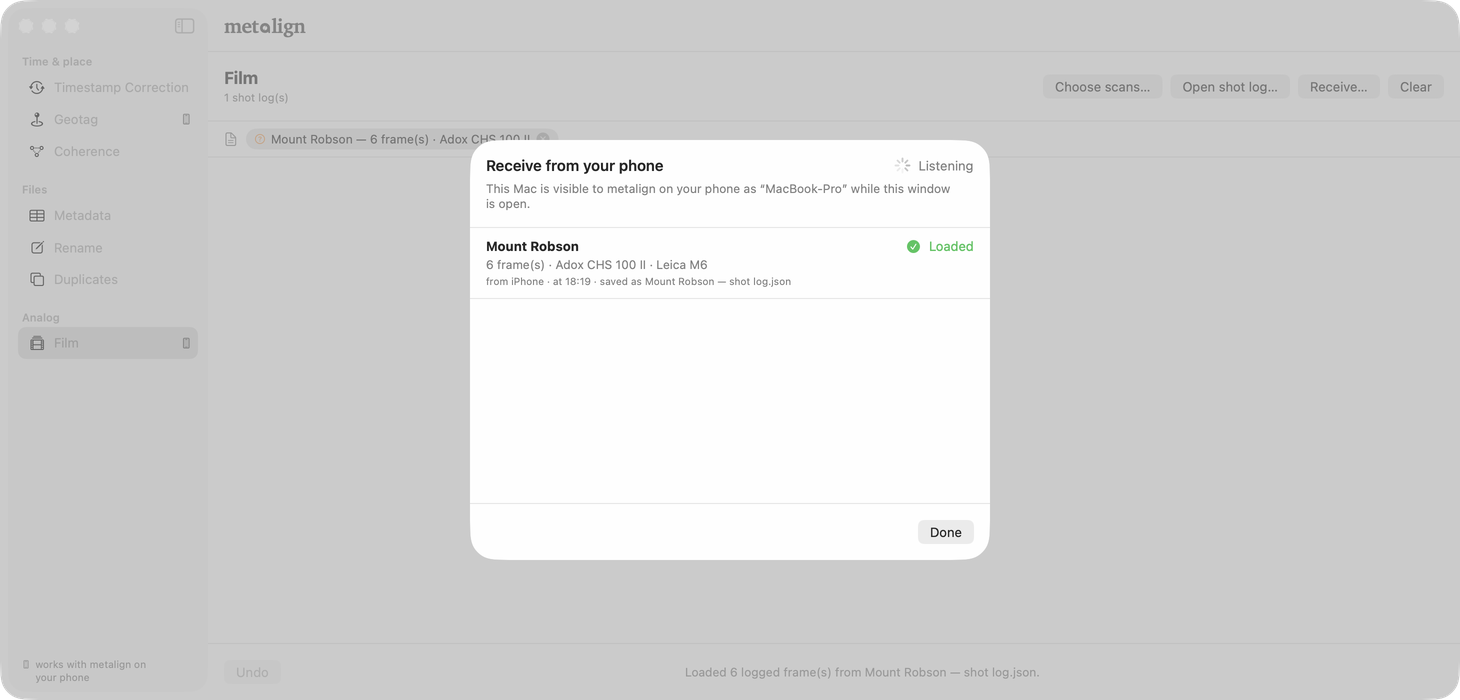
A roll sent again
A shot log for a roll the Mac already has open replaces it, however it arrives. The corrections made on the Mac carry over to the new log by each frame's identity, not its number, so they land on the right frame even if the phone renumbered. Where the newer log changed a field itself, the newer log wins that field. Corrections for frames no longer in the log, and blank frames inserted on the Mac, are dropped. A notice at the top of the section says what happened, roll by roll, until you dismiss it.
Section 6.3 Or from the Dock, by Handoff
While a roll is open on the unlocked phone, a Mac signed in to the same Apple Account shows metalign in its Dock. Click it, and the Mac opens on Film with that roll loaded: it asks the phone, and the phone answers over Apple's Handoff with the same bytes a push sends. No panel to open first, and nothing to pair, since Handoff only joins your own devices; it has to be on for both. If nothing has arrived 15 seconds after the click, the Mac opens the Receive… panel so you can send it from the phone instead. It works whether metalign on the Mac was running or not.
Section 6.4 Or as a file
Export shot log writes the same bytes to
<roll> — shot log.json. AirDrop it and drop it on the Film section
together with the scans; one drop zone takes both. No network, no listener, no Mac in the
room. The same file opens in metalign web, and on another iPhone or iPad
(§2.11).
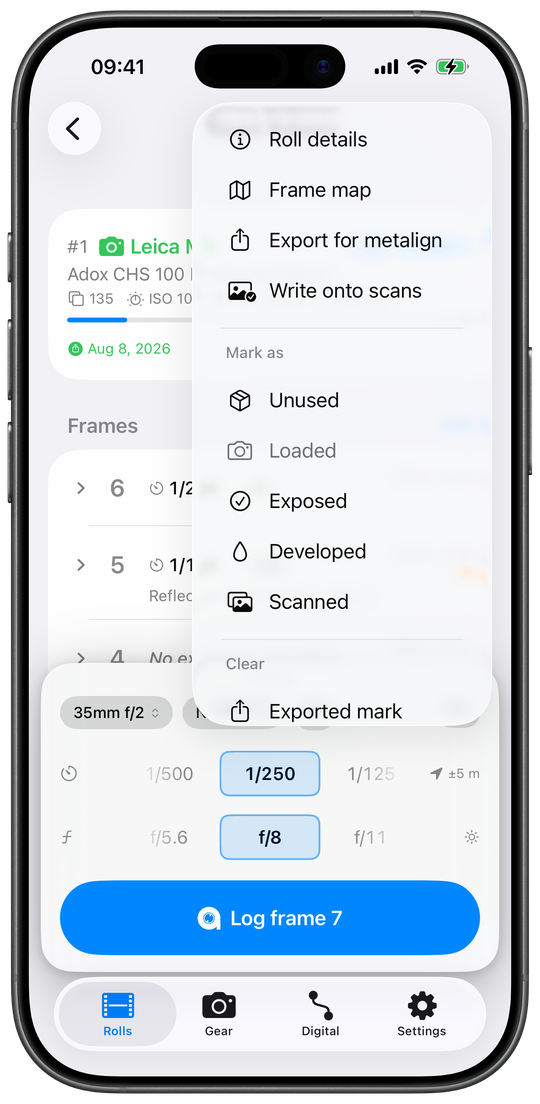
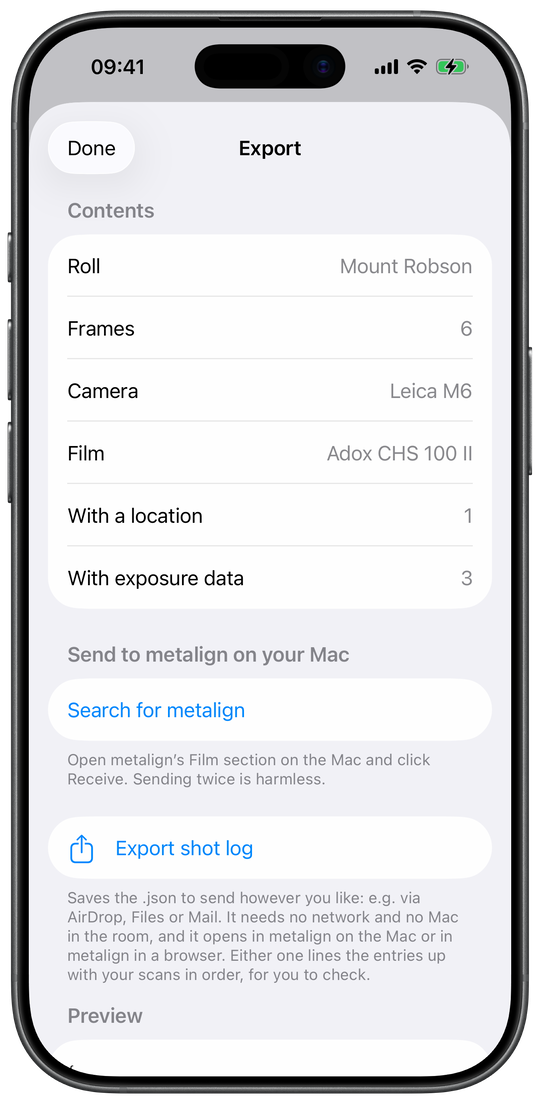
Section 6.5 And back again: corrections to the phone
A frame corrected on the Mac (§4.8) is corrected in the Mac's
copy; the phone's roll does not know until the corrections go back.
File → Send corrections to your iPhone… lists every roll with a
correction or an inserted blank frame. Search for your iPhone
finds a trusted iPhone that has Receive corrections from your
Mac open, and Send hands it every roll, encrypted; or
Save as files… writes one <roll> —
corrections.json per roll to AirDrop. On the phone they are reviewed and applied
(§2.11). The file and the push carry the same corrections.
A flash is never carried back.
Section 6.6 To the browser
Open in a browser on the phone's Export screen opens
web.metalign.org with the roll already loaded. The shot log rides in the link's fragment,
the part after #, which a browser never sends to a server, and the page
clears it from the address bar before reading it. The other way in is the file, dropped
on the page with the scans. Nothing comes back from the browser to the phone: it writes
the scans and nothing else (§5).
Section 7 Pairing is positional
The rule
A scan is written with the frame it is level with in the table. Nothing else binds them: not the number in the lab's filename, not the frame number in the log.
Scans go down the left in order, the log's frames down the right, and the scans are what move. The order is the delivery's: by filename for files (the way the Finder sorts them), by date for photos picked from Photos, and on the Mac and in a browser as they were paired on the phone, when the shot log carries that pairing. It works this way because the alternative fails silently: labs number files however they like, frame numbers skip, and a delivery missing one frame would mis-assign the whole rest of the roll with nothing to say it happened. The frame number is the label you check the pairing against, never the key it is made with. So check it. A row shows the frame the way the roll's own frame list draws it, with the scan under it: the exposure, time and title on the first line, the thumbnail and filename on the second. An off-by-one across a roll is obvious in pictures and invisible in filenames.
Only the scan column is re-ordered: re-arranging frames would be editing the roll from the wrong end. The frame column can change in three ways, each on purpose. It can gain a blank frame, inserted from the row it belongs on, because the pairing table is the one place the missing negative's position is actually known. It can lose a frame marked for deletion there, a press logged twice, which then takes no scan. And a roll with no frames at all gains one per scan (§2.8).
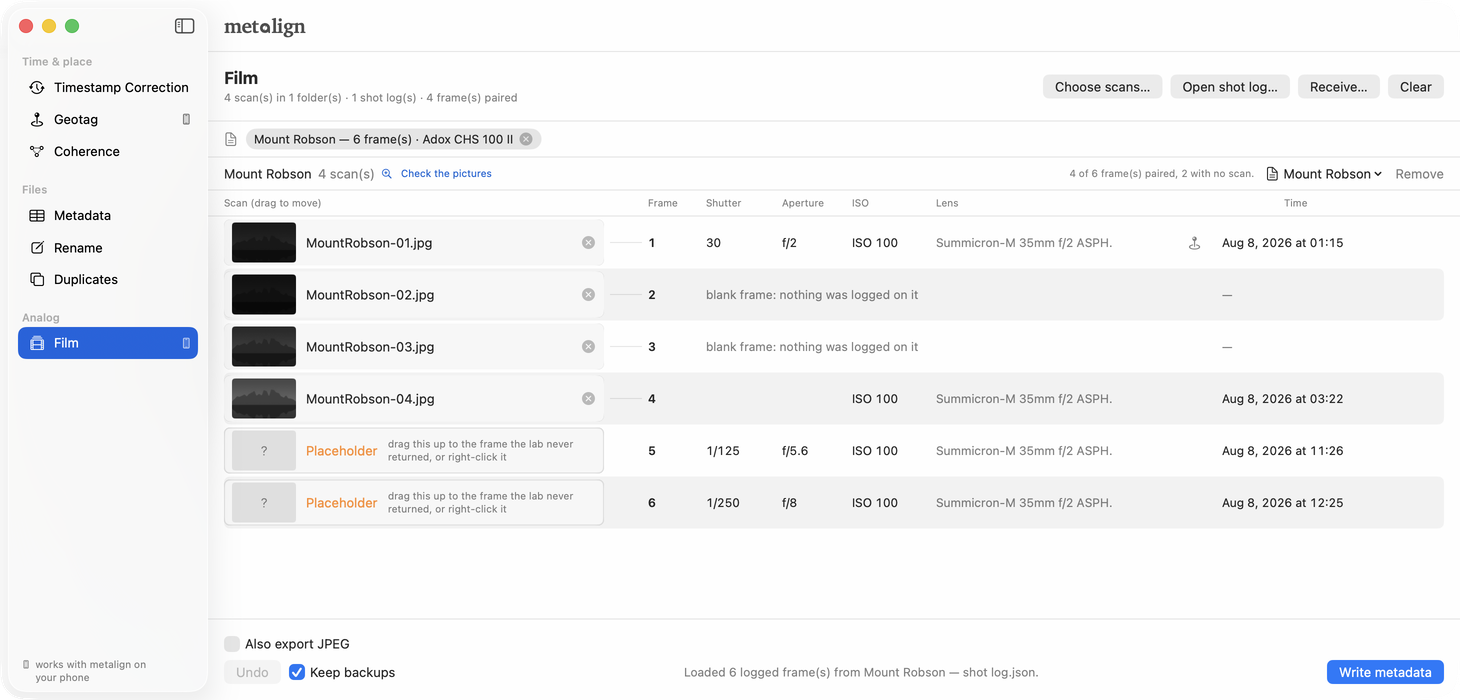
- A frame the lab never returned is an empty row in the scan column, and the two apps do not call it the same thing: the phone marks it No scan, metalign desktop marks it Placeholder (Fig. 7.2, rows 5 and 6). On the phone, swipe the row where the lab skipped a negative right and Insert placeholder, and every scan below moves down one; Arrange moves single scans. On the Mac, drag the placeholder up to that frame, or right-click it and pick Move to frame, and ⌘Z undoes it. Nothing on disk is touched either way.
- The same frame twice — a re-scan, or one job number repeating another — wears an orange !. It is read off filenames, so metalign desktop never acts on it: click the mark to see both frames, then Not a duplicate or Remove. Until you answer, the roll below sits one row out of step with the log. Check the pictures compares the images themselves and says which way the evidence went.
- A blank frame is a frame number with nothing logged on it, a negative you know exists and know nothing about. The counter read 18 while the app held 17, or a press went unlogged. It holds its place in the numbering, and it usually has a scan, because the negative is on the film for the lab to find. So a scan level with a blank frame is most often correct; it just can't be checked, because the log has nothing on that row to check it against. That is what the phone says about it, and why it asks you to look rather than telling you to repair.
- A placeholder is the other half of that pair, and they are opposite things. A blank frame is a negative that exists and carries nothing; a placeholder is a row no file lands on, a gap you open in the scan column when the lab skipped a frame. The phone draws them as a pair to keep them apart: a solid mark beside Blank frame, a dashed one for the placeholder. Each column repairs its own side. More frames than scans wants a placeholder; more scans than frames wants a blank frame. The Mac spends one word on both halves of the scan column — a row you opened and a row the lab simply never filled are both Placeholder there — so a roll opened on both machines meets two vocabularies for one cell. That is worth knowing rather than worth working around: the cell means the same thing on either screen, and the drag that repairs it is the same drag.
- Deleting a logged frame is the same physics from the other end. Take a row out of a roll and every scan below it pairs one negative high: positionally, on another machine, weeks later, with nothing going visibly wrong. So the swipe deletes in two steps, and the first one can be taken back. Swiping a frame left offers Mark for deletion, which loses nothing: the row's number becomes a dash and every frame after it reads one lower at once, so what deleting would do to the roll is on screen before anything is gone. The same swipe on a marked frame offers Restore beside Delete, and that delete changes no number, because the numbers already moved when the frame was marked: “It’s marked for deletion, so it already has no number. No other frame’s number changes.” A negative that is on the film under a wrong entry is the long press's job. Make it blank keeps the number and empties the entry, and the row that then reads Blank frame carries an Undo beside those two words. The long press also keeps Delete frame for a frame nobody marked, with its question: is the negative still on the film?
- A roll whose log has already gone out is told what a re-deal makes stale. One sentence, and never a refusal. Marking a frame is a swipe that asks nothing, so the frame list says it for as long as it is true: “A frame was marked after this roll went out, so the frames after it have new numbers. What went out keeps the old ones until you send or write the roll again.” Deleting from the long press says the same in its dialog. Nothing is broken by it — metalign pairs positionally, not by the frame number written into a scan — and sending the roll again puts the two back in step. The marks a roll carries for having been sent and written are recorded, never enforced.
- The roll's first frames may have no logged frame at all. A body loaded fresh sits below 1 (an M6 at −2), and unless the camera says Counter starts below 1 (§2.3), those wind-on frames are real negatives nobody logged. A lab that scans them delivers those files first, and the scan column sorts by filename, so they take the top rows while the surplus shows up at the bottom. The two ends are not the same row: the blank frame to add belongs at the top, and adding it at the bottom instead pairs every scan on the roll two negatives high, with nothing on screen saying so. Fig. 7.4 is that case on the phone.
- An empty exposure is not a fault. A frame logged from the Action button, the control, a widget or the Live Activity had no dials on screen, so it records the time and gear and leaves the exposure blank rather than copying the last frame's (§3.1). It still pairs like any other frame.
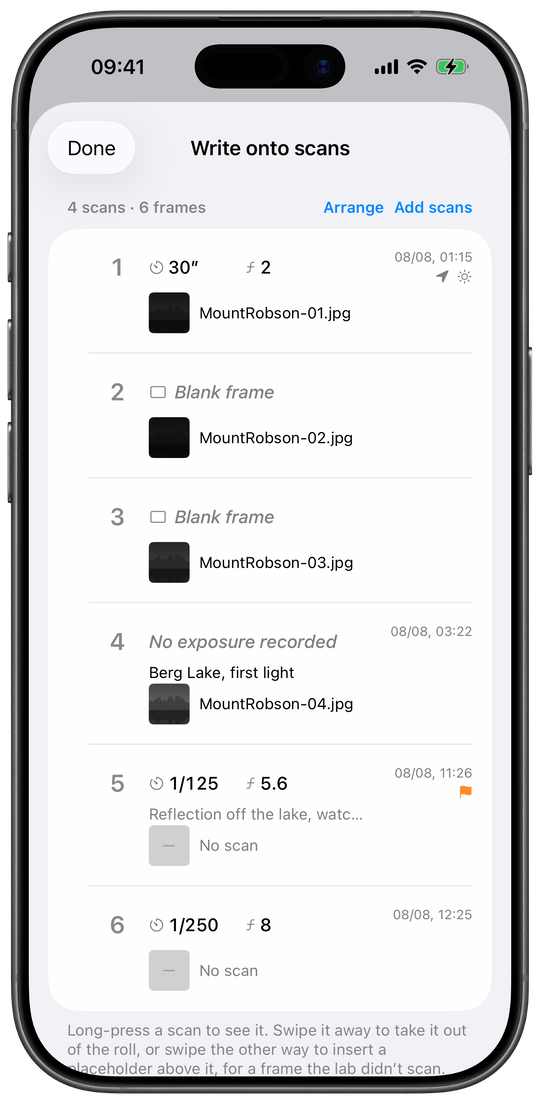
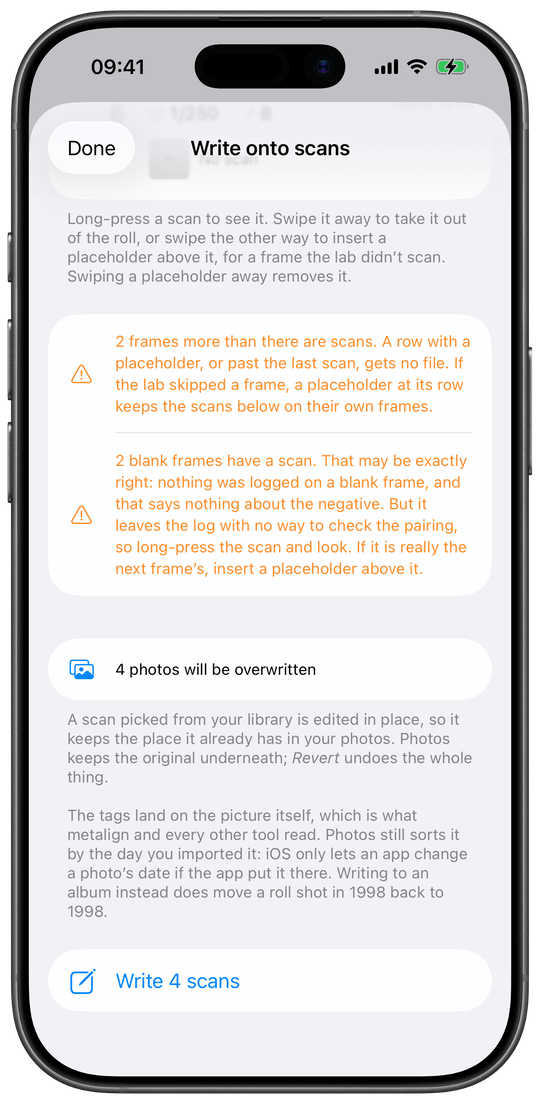
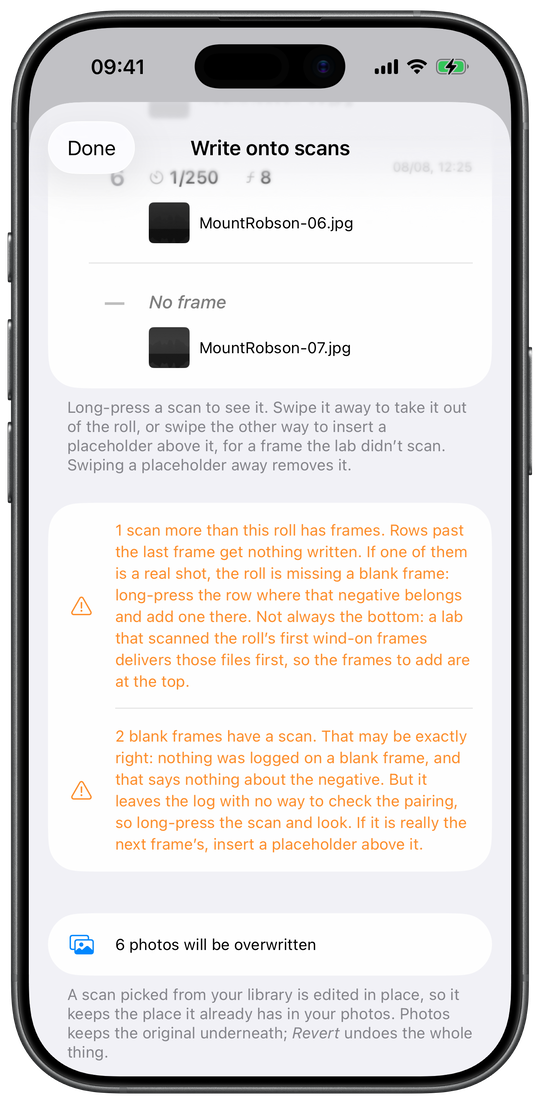
Section 9 Mac, phone, or browser
All three write out of one document, by one pairing rule, into the same tags. What they do not share is which files they will open, where the finished file ends up, and what they leave behind. One of the three is worth a paragraph first.
metalign web runs on no device of its own: it puts the Mac's Film section in a browser, at web.metalign.org, entirely on the machine it is open on, and the phone's Open in a browser opens it with the roll loaded. Nothing is uploaded and there is no account. That is not a promise about our conduct but a property of the page: it is served under a policy that permits it no connections of its own, so there is nowhere for a scan to go.
| Property | metalign desktop, on the Mac | metalign, on the phone | metalign web, in a browser |
|---|---|---|---|
| Scans it will write | What the bundled ExifTool writes, TIFF included | JPEG only — ImageIO will not put a capture date into a TIFF's EXIF | JPEG and TIFF, written natively; ExifTool only for the files it will not vouch for |
| Where the file ends up | In place, beside the lab's delivery | From Files, copied into an album in Photos or a folder you pick in Files, or overwritten where it sits; from Photos, written back onto the photo itself | In place, in the folder it came from, on Chromium; everywhere else a ZIP of the roll |
| Backups | An untouched *_original of every scan, while Keep backups is on (the default) |
None of its own — Photos keeps the original, and Revert undoes the write; from Files, only Overwrite files touches the delivery | An *_original, written before the new bytes, and a second write keeps the first one; the ZIP route reads the scans and touches nothing |
| Flash | Writes EXIF:Flash |
Never writes it, in either direction | Writes EXIF:Flash |
| A position nobody measured | Writes GPSProcessingMethod into the EXIF GPS block |
Writes the same value, into the XMP packet rather than the EXIF block, where a reader of EXIF alone will not find it | Writes it into the EXIF GPS block |
| Caption, title, keywords | MWG composites — EXIF, IPTC and XMP together | XMP, mirrored into ImageDescription, Artist and Copyright; no IPTC block |
MWG composites as well — EXIF, IPTC and XMP, in JPEG and TIFF alike |
| The place's name | Not written | Written into the XMP packet's IPTC Core location fields | Not written |
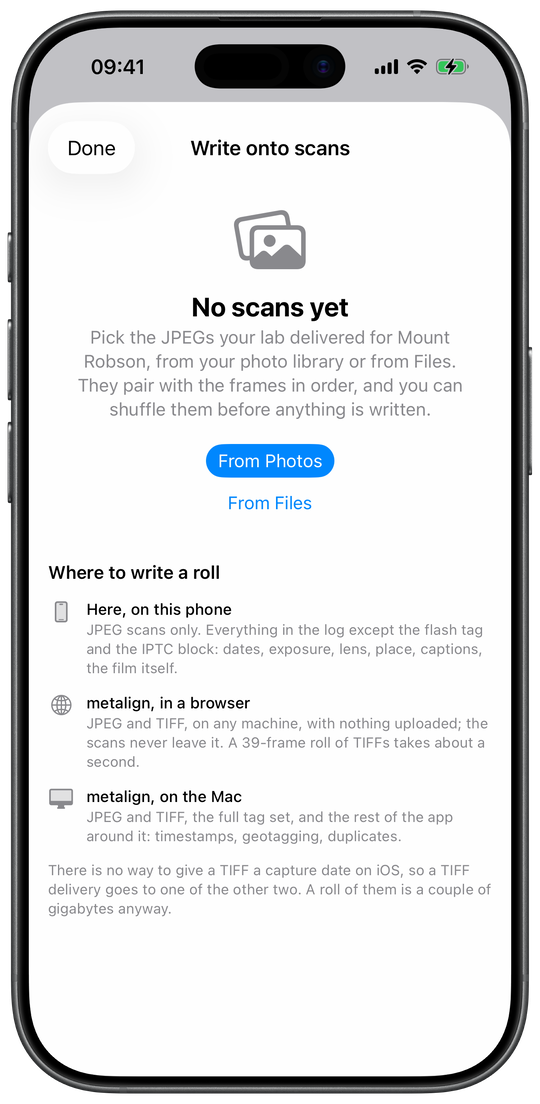
Section 10 Worth knowing
- Three bodies are verified end to end: Leica M10-P, Leica Q-P and Sony A7 III. Everything else is expected to work and has not been checked here.
- Lab scans are big. A 36-exposure roll of TIFFs runs to about 2 GB, so the Mac can write a JPEG beside each scan and tag only that one, leaving the lab's file byte for byte as it arrived (§4.8).
-
Afterwards they are ordinary photos. They carry a real
Make,Modeland capture date, so they sort by date and group by camera in Photos, Lightroom, and every other section of metalign desktop, like any digital file. - The network routes need the two devices on the same network, or near each other with Wi-Fi on. The file route needs none, and Handoff needs both signed in to the same Apple Account.
- What leaves your devices, and when. metalign has no server and no account of its own, and sends nothing to its developer. A roll or a track goes to a Mac you have trusted, encrypted, when you tap it; to your own Mac by Handoff when you click the Dock; wherever you send a file; into a browser's history with Open in a browser; and to your own iCloud once you switch sync on. Apple is asked three things, each by a tap of yours: a place's name (the coordinate goes to Apple Maps, whose map tiles every map loads), the full version's purchase (the App Store), and the roll's title while Handoff offers it. metalign web cannot send anything anywhere.
- Where this page and the apps disagree, the apps are right. Every control and every value quoted here was read off the apps themselves and copied across by hand, and nothing keeps the two in step automatically.
- The rolls in this handbook’s screenshots. Mount Robson is invented: the film, the frames and the times are made up, and the coordinates are a mountain. Seiser Alm / Regensburg is a real roll, shot on a Leica M6 on Kodak Portra 400, with notes and place names added for the pictures.
Section 11 Questions
The questions people ask about metalign, each answered in a sentence or two with a link to the feature that answers it in full. Nothing here is new: every answer is a summary of a section above, and where the two ever differ, the section is right.
Section 11.1 Logging a roll
How do I log a frame?
Open the roll that is in the camera, set the Shutter and Aperture dials to what the camera was set to, and tap Log frame N. The frame gets the time with its time zone, the place, the exposure, the filter, the flash and the lens (§2.3).
Do I have to set the dials for every frame?
No. With Carry settings to the next frame on, the default, the dials, lens, filter and metered ISO stay where you left them, so a run at one setting is one tap a frame (§2.3).
What if I did not note the exposure?
Leave the dial on its "—" stop: the frame reads No exposure recorded and nothing is guessed (§2.3). Frames logged from the watch, a widget or Siri carry no exposure unless you say one.
Can I shoot two cameras at once?
Yes: load a roll into each body. In a camera then gets one heading per camera, so you can see which film is in which body (§2.1).
How do I log a roll I am pushing or pulling?
Pick the film and set Metered at to the speed you meter at, for example HP5 at 1600. That speed is written as the film speed on every scan (§2.2).
Can I add a roll I shot without metalign?
Yes. Already shot at the foot of New roll creates a developed or scanned roll whose frames come from its scans, one per scan (§2.2).
Can metalign read the film box?
It learns barcodes rather than shipping a table: the first scan of a box asks which of your films it is, and every scan after that is instant (§2.7).
Can I record a filter?
Yes, with its factor, and the sheet says how much to open up. The filter is recorded and written onto the scan, never applied to anything (§2.5).
My camera's counter starts below 1. Does that matter?
Set Counter starts below 1 on the camera in Gear, and frames are numbered the way its counter is, in the app, the shot log and the scans (§2.3).
Why did a frame get no place?
The bar's location status says: tap the crossed arrow for the reason, such as location access, Low Power Mode or no position yet (§2.3). A frame logged away from the app on a locked iPhone gets a place only under the conditions in §3. A place can be added later (§2.6).
Can I log without recording where I was?
Yes. Log location for each frame off records no place on new frames from any route, the watch included (§2.6).
How do I delete a frame without breaking the scans?
Every delete asks whether the negative is still on the film: leave a blank frame, and the numbers below stay in step with the scans; move the rest up only for a frame that was never shot (§2.4).
One press logged two frames. What now?
A line above the frames asks "One press logged twice?": mark the extra one for deletion, or confirm it if both were real (§2.4).
Does metalign know if it was golden hour?
Yes, for a frame with a time and a place, worked out on the phone with no connection. It is shown in the app and never written into a scan (§2.5).
Section 11.2 Without the phone's screen
Can I log a frame without unlocking my iPhone?
Yes, with the Log Frame control on the Lock Screen or the Action button (iOS 18 and later), which never asks for Face ID (§3.5). The Live Activity's button asks for Face ID on a locked iPhone (§3.6).
Can I log from my Apple Watch?
Yes: the roll page logs the next frame with the time, the place from the watch's own GPS and the body's lens, and a second page takes the exposure (§3.2, §3.2).
Does the watch need the iPhone nearby?
No. Every press is saved on the watch first and delivered when the phone is back in range, placed on the roll by the time it was made (§3.2).
Can I log a frame with Siri?
Yes: say "Log a frame in metalign", with the iPhone locked if you like, and answer with a note or stay silent (§3.7).
Can the Action button log a frame?
Yes, as the Log Frame control or as a shortcut (§3.5).
Is there a widget?
Yes: a Home Screen widget with the count and a button that logs the next frame without opening the app, a Cameras widget, Lock Screen widgets and a watch-face complication (§3.4, §3.3).
Section 11.3 Scans and metadata
How are scans matched to frames?
By position, never by filename: the first scan in filename order gets the first frame, and you check and move rows before anything is written (§7).
The lab skipped a frame. How do I fix the pairing?
Insert a placeholder at that row, and every scan below moves down one (§2.8, §4.8, §5.2).
There is a scan for a negative I never logged.
Insert a blank frame above that row: the roll gains a frame, and the scan gets the roll's facts and its number (§2.8).
What exactly is written into a scan?
Dates with their time zone, camera, exposure, lens, place, title, caption, keywords, rating, creator and copyright, and the film in metalign's own namespace, as real EXIF and XMP. The full table, per app, is §8.
Does it write IPTC for Lightroom?
The Mac and the browser do, with a JPEG's digest recomputed so Lightroom sees no conflict (§5.5). The phone writes no IPTC block (§2.8).
Are my scans re-encoded?
No. The pixels are copied untouched and the metadata merged onto what the file already carried, then read back (§2.8).
Can the iPhone write TIFF scans?
No: iOS cannot give a TIFF a capture date, so a TIFF delivery goes to metalign on the Mac or in a browser (§2.8).
Are the lab's originals kept?
On the Mac, Keep backups keeps an untouched
_original of every scan (§4.8); the browser's
ZIP route never opens your scans for writing (§5.5).
What do the scans look like to other apps afterwards?
Like ordinary digital photos: a real make, model and capture date, so they sort by date and group by camera in Photos and Lightroom (§10).
Can I post a frame with its details?
Share photo turns a written frame into a 4:5 or square JPEG with the details you choose printed under it (§2.10).
Can I print a contact sheet?
Yes: Make contact sheet builds a printable PDF of a roll (§2.9).
Section 11.4 Between devices
How do I get a roll onto my Mac?
Three ways: send it over the local network to a trusted Mac, click metalign in the Mac's Dock by Handoff, or export the shot log as a file and AirDrop it (§2.12, §2.12, §2.11).
Why do I compare a code with my Mac?
So the two agree on a key once: both screens show the same six-digit code, and from then on every exchange with that Mac is encrypted with it (§2.12).
Can I finish a roll without a Mac?
Yes. The phone pairs JPEG scans and writes them itself (§2.8), and Open in a browser takes a roll to metalign web on any computer (§2.11).
I corrected frames on the Mac. Can the phone have them?
Yes: send the corrections from the Mac to the iPhone, or save them as a file (§2.11, §6.5).
Does metalign sync through iCloud?
If you switch it on: rolls, frames, gear and settings go through your own iCloud account to your other devices (§2.12).
Does metalign run on iPad?
Yes, with the Rolls list as a sidebar and a wider pairing table (§2.1).
Do the devices need the internet?
No. The network routes need the two devices on the same network or near each other, the file route needs nothing, and Handoff needs the same Apple Account (§10).
Section 11.5 The Mac, the browser, and metalign itself
Should I use the phone, the Mac or the browser?
The phone for JPEG deliveries without a computer, the Mac for TIFF, large batches and digital photos, the browser for TIFF on any machine with nothing installed (§9).
My digital camera's clock is wrong. Can metalign fix the photos?
Yes: photograph the iPhone's Sync Clock with that camera, and the Mac reads the true time out of the shot and corrects every photo from that camera (§2.13, §4.2).
Can I geotag photos from a camera without GPS?
Yes: record a track on the iPhone and the Mac writes GPS into the photos by their capture time (§2.13, §4.3).
Can I remove location and other metadata before sharing?
On the Mac, Remove… strips what you tick, with location, owner name and serial numbers ticked by default (§4.5).
Can I rename photos by date and camera?
Yes: Rename & Organise builds filenames and folders from each photo's metadata and lists every new name before anything moves (§4.6).
Can it find duplicate photos?
Yes: Find duplicates groups pictures that look alike, by their pixels (§4.7).
I manage my photos in Lightroom Classic or Capture One.
metalign writes into the files and warns you when a catalog manages them: save that app's changes first, write here, then read the metadata back there (§4.1).
Which files does the Mac take?
JPEG, HEIC, TIFF, PNG, DNG and the raw formats of the major makers (§4.1).
Which browser does metalign web need?
Any current one writes the finished scans to a ZIP; writing straight into the scan files needs Chrome, Edge or Opera (§5.1).
Does metalign web upload my scans?
No. The page is forbidden any connection of its own and cannot send anything anywhere (§5.6).
Do I need an account? What does metalign send?
No account. metalign has no server and sends nothing to its developer; a roll leaves your devices only by a route you choose (§10).
Which cameras does it work with?
Three are verified end to end: Leica M10-P, Leica Q-P and Sony A7 III. Everything else is expected to work and unverified (§10).
Does it cost anything?
Two rolls can be started without the full version; from the third, one in-app purchase, not a subscription, covers as many rolls as you like. The price is shown in the app (§2.14).
Is metalign available in German?
Yes: all three apps, including the watch, Siri and the Mac, where the Film section is called Scans (§3.7, §4.1, §5.6).